Mejor grabador de pantalla 8K
 100% Seguro. Sin anuncios.
100% Seguro. Sin anuncios.
If you are a game player, you cannot be unfamiliar with Roblox. It is a leading online game platform powered by players and developers. As a user-generated MMO (Massive-Multiplayer On-Line) gaming site for kids, teens, and adults, Roblox allows you to build your own virtual game world, play and share it with the public. After signing in to Roblox, you can download interesting games to your desktop, tablet, or phone.
For wonderful/meaningful moments within games, you can take a screenshot or record a video. Recording yourself playing on Roblox becomes very necessary. This article tells how to record Roblox videos, with both built-in options and third-party game recorders.
Roblox has built-in video capture features for users to take a screenshot or capture a clip with ease. This default Roblox recording way is available for free to all players on desktop and mobile devices. You are allowed to directly save a short video (up to 30 seconds) while playing within a Roblox experience.
But kindly note that Roblox’s built-in recorder may slow down your device if you type and read at the same time. So, to get a good recording quality of Roblox video, we suggest you take Roblox game recordings on your PC. Steps are as easy as the following:
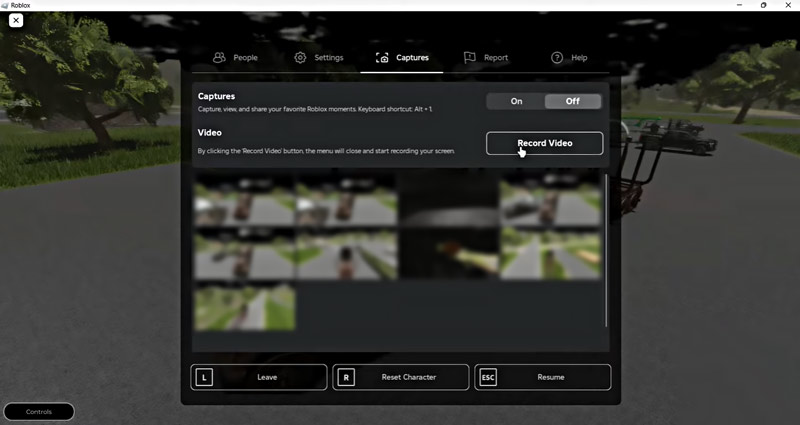
You can easily access the recorded gameplay video (saved in the WMV format) by clicking Abrir carpeta in the notification. You can upload it to Twitch, YouTube, TikTok, or other websites for sharing directly.
This built-in Roblox recorder is very easy, right? However, it still comes with some significant drawbacks.
Considering these disadvantages of recording Roblox videos with its built-in recorder, you may search for a dedicated, professional game recorder. This section recommends the powerful Roblox recording app, Aiseesoft Screen Recorder. It enables you to record high-definition Roblox game videos with an optional recording area. Moreover, it allows you to record microphone audio to save voice chat when playing a game.
100% Seguro. Sin anuncios.
100% Seguro. Sin anuncios.
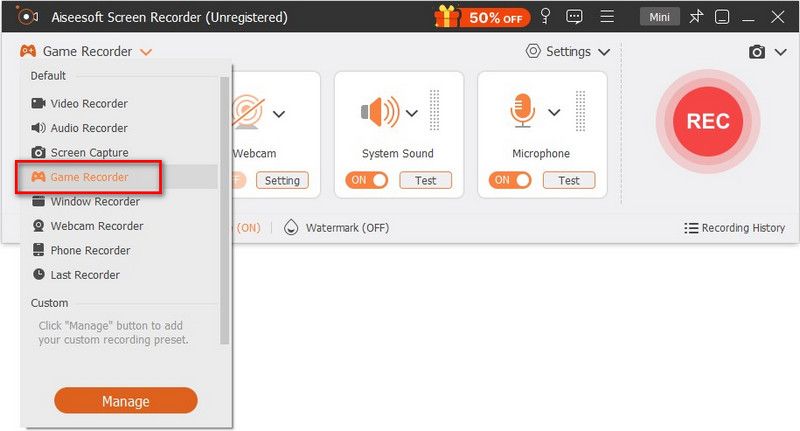
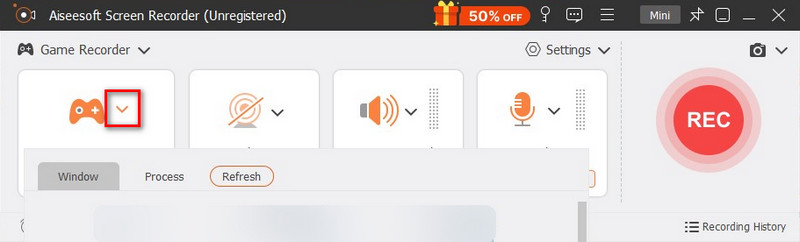
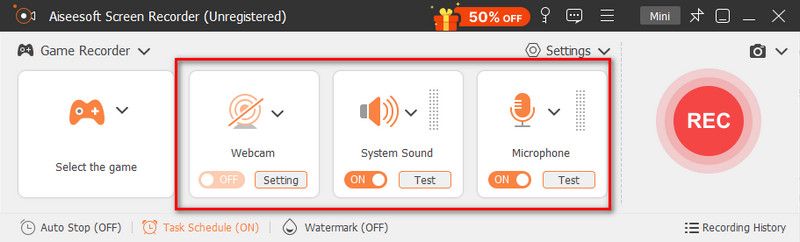
As a professional game recorder, Aiseesoft allows you to highlight your mouse cursor to show it on your screen for easy control. Better than the built-in recorder in Roblox, it lets you pause or resume the recording by pressing the hot keys. You can set the hot keys according to your preferences. Most importantly, the software enables you to capture 4K, high-quality Roblox videos with clear audio.
Apart from recording game videos, you are able to turn on system audio only to grabar música. Also, if you attend an important meeting, you could record it so as not to miss any critical points.
¿Hay un chat de voz en Roblox?
Sí. Roblox en Xbox tiene un sistema de chat de voz integrado que te permite chatear con tus amigos y miembros del grupo.
¿Cómo grabar Roblox con OBS?
Descargue e inicie OBS Studio en su computadora con Windows. Abra Roblox y seleccione Configuración en la sección inferior derecha. Vaya al cuadro Escenas en la sección inferior izquierda y haga clic en Agregar para agregar una nueva entrada. Luego vaya a Fuentes y haga clic en Agregar para agregar la fuente. Seleccione Captura de juegos y marque la casilla Agregar existente. En el menú desplegable Ventana, seleccione su juego de Roblox. Luego seleccione el botón Iniciar grabación para capturar su juego.
¿Cómo grabar tu voz en Roblox?
Puede grabar su voz en Roblox con Aiseesoft Screen Recorder. Instale e inicie Aiseesoft Screen Recorder en su computadora y haga clic en Audio Recorder en la interfaz principal. Habilite las opciones de Micrófono y Sonido del sistema. Juega el juego de Roblox y haz clic en REC para comenzar a grabar.
Conclusión
Whether for preserving or sharing your favorite gaming moments or other reasons, you may want to grabar videos de roblox. Generally, you should start with the built-in recording options to capture a clip or take a screenshot. If you prefer a dedicated game recorder with more advanced functions/controls and for more professional results, turn to the recommended Aiseesoft Screen Recorder.
 Cómo grabar Google Hangouts
Hangouts de Google le brinda una excelente experiencia de chat y es posible que desee grabar el Hangout de Google para volver a verlo más tarde. Aquí se presentan dos formas simples de grabación.
 Los 5 mejores editores de video de pantalla dividida disponibles para Windows 10/Mac
¿Te sientes aburrido con los videos regulares? Aquí están los 5 mejores editores de video de pantalla dividida para ayudarlo a crear efectos únicos con sus propios videos y fotos.
 2018 Mejores aplicaciones para iPhone y solución de problemas
Consulte las mejores aplicaciones para iPhone de 2018 por categorías populares (música, fotos, videos, redes sociales, etc.), así como consejos para la solución de problemas de aplicaciones para iPhone.
Juegos de récord
1.1 Captura de juego1.2 Software de grabación de juegos1.3 Software de grabación de videojuegos1.4 Grabar juego de Diablo 31.5 Récord de League of Legends1.6 Grabar juegos de PS31.7 Grabar juegos de Xbox 3601.8 Grabar juego de Pokémon1.9 Grabar juegos de Minecraft1.10 Grabar juego de Roblox1.11 Grabar juegos SWF1.12 Grabar juego en Windows1.13 Grabar juego CSGO1.14 Grabadora de juegos LoiLo1.15 Ver y grabar repeticiones en Fortnite1.16 Grabar momentos destacados de Overwatch1.17 Grabar juego en Switch1.18 Grabar juego de realidad virtual
Aiseesoft Screen Recorder es el mejor software de grabación de pantalla para capturar cualquier actividad como videos en línea, llamadas de cámara web, juegos en Windows/Mac.
100% Seguro. Sin anuncios.
100% Seguro. Sin anuncios.

*Campo requerido
*Por favor ingrese un correo electrónico válido