Aiseesoft iKnockin - Desbloqueador de iPhone
 100% Seguro. Sin anuncios.
100% Seguro. Sin anuncios.
Contenido
¿Quieres cerrar sesión en tu ID de Apple para vender un iPhone antiguo?
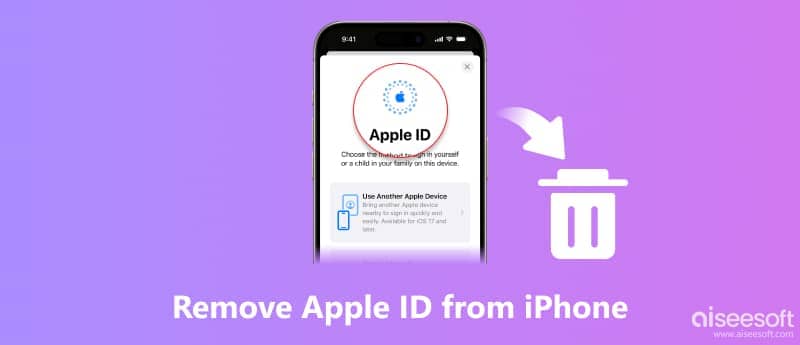
Tanto si quieres vender tu iPhone como si quieres regalárselo a algún amigo, lo primero que debes hacer es eliminar tu ID de Apple. Si aún recuerdas la contraseña, es bastante sencillo. ¿Y si olvidaste el código de acceso vinculado a tu antigua cuenta de Apple? Cómo eliminar un ID de Apple de un iPhone sin contraseña.Si lo olvidaste, no te preocupes, aún hay 4 maneras de hacerlo.
Cómo probamos estos métodos
Probamos estos métodos en un iPhone 15 (iOS 28) y en un iPhone 13 (iOS 18).
Para un iPhone bloqueado/deshabilitado: Método 1.
Para cerrar sesión normalmente: Método 2 o 3.
| Situaciones | Formas |
| Olvidé el código de acceso de mi ID de Apple. | iPhone Unlocker |
| Conoce la contraseña | Cerrar sesión de Apple ID; Cambiar ID de Apple. |
| Estar vendiendo el iPhone | iCloud.com. |
Con un ID de Apple, puedes acceder a servicios de Apple como iCloud, App Store, Apple Music, iMessage y FaceTime. Si olvidas la contraseña de tu ID de Apple o no puedes acceder a la cuenta vinculada a tu iPhone, eliminarla puede resultar complicado.
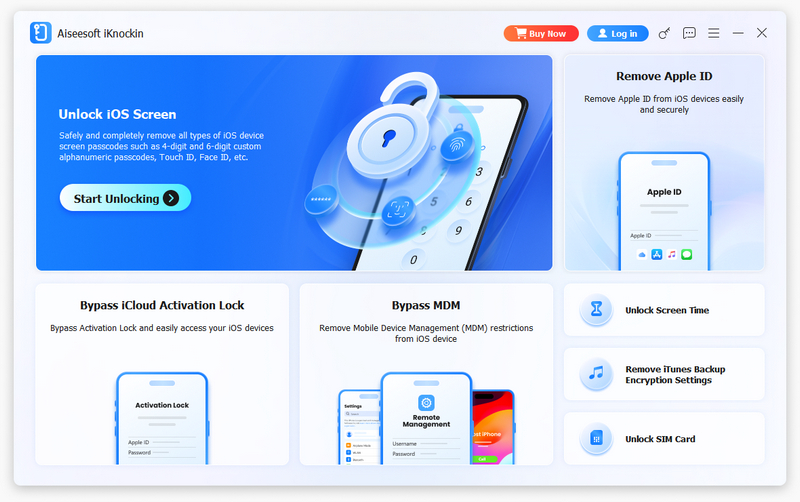
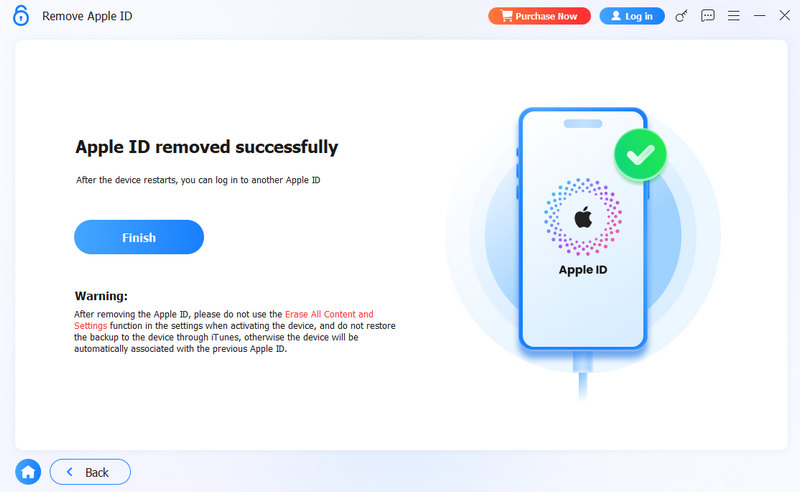
En este caso, Aiseesoft iKnockin – Desbloqueador de iPhone Ofrece una solución práctica para eliminar el ID de Apple de los modelos de iPhone y iPad compatibles sin necesidad de introducir la contraseña. También puede ayudar a desbloquear iPhones bloqueados, eliminar códigos de acceso olvidados y solucionar otros problemas de bloqueo de iOS.
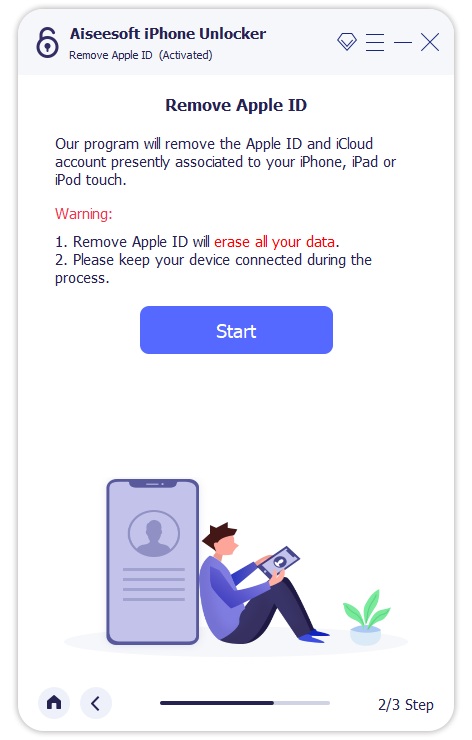
Antes de eliminar tu ID de Apple con iPhone Unlocker, asegúrate de que el dispositivo te pertenece y ten en cuenta que este proceso puede borrar todos los datos de tu iPhone. Además, en la mayoría de los casos, debes desactivar Buscar mi iPhone; de lo contrario, las restricciones de seguridad de Apple podrían impedir la eliminación de tu ID de Apple.
100% Seguro. Sin anuncios.
100% Seguro. Sin anuncios.
Nota: : utilice nuestro producto con fines legales. No le recomendamos que elimine la ID de Apple del iPhone 11 robado.
Este método requiere que conozcas la contraseña actual del dispositivo. Aquí tienes unos sencillos pasos que puedes seguir. También puedes usar este método para eliminar fácilmente tu ID de Apple de tu iPhone o iPad.
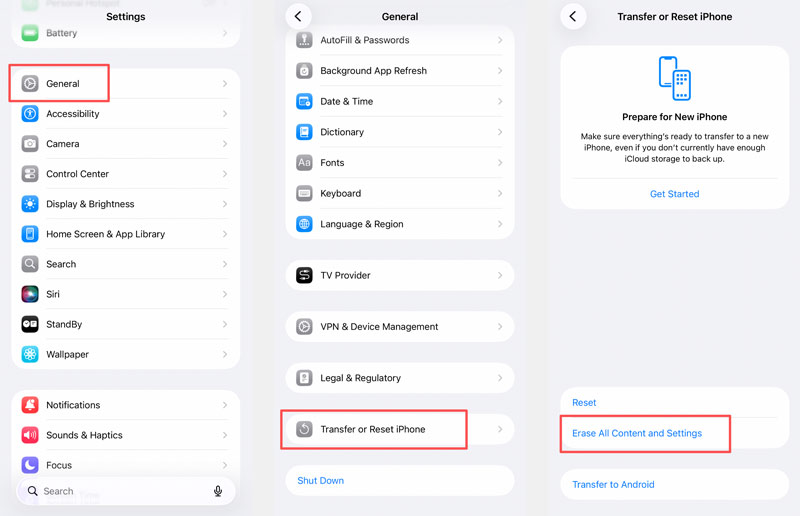
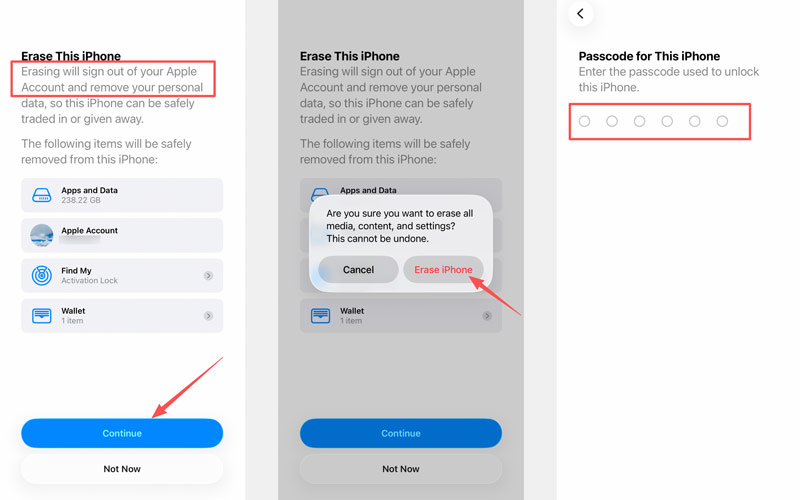
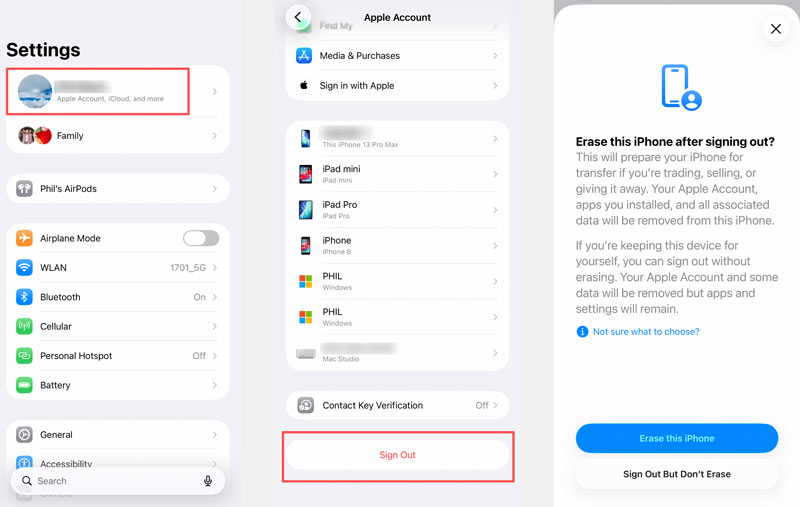
¿Qué ocurre si el ID de Apple con el que firmaste ya no se usa o es incorrecto, o si la cuenta de Apple que usaste pertenece al propietario anterior? Al comprar una app, sigues usando su ID de Apple. Puedes cerrar sesión en la cuenta de iCloud anterior e iniciar sesión con el ID de Apple correcto. Para ello, necesitas saber la contraseña actual de tu ID de Apple.
Si deseas eliminar tu ID de Apple anterior de tu iPhone o iPad, puedes hacerlo en iCloud.com. Aquí tienes una guía sencilla para cerrar sesión en tu ID de Apple al vender un iPhone.
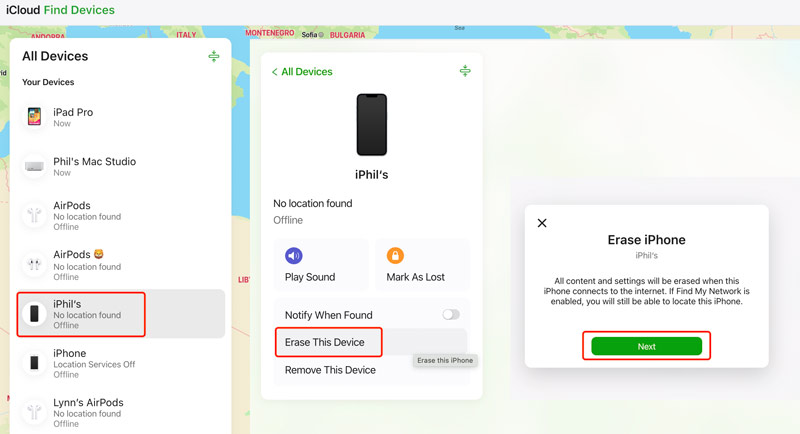
Después de eso, tu ID de Apple se eliminará de tu iPhone. Si se pierde algún dato importante, es mejor que primero hagas una copia de seguridad de tu iPhone usando Respaldo y restauración de datos de iOS.
¿Qué es exactamente una ID de Apple?
Una ID de Apple es la ID de cuenta universal para que inicie sesión en servicios como iTunes, Apple Store, iCloud, Apple Music, etc. Es universal para todos sus dispositivos iOS, ya sea iPhone, iPad, iPod o MacBook.
¿Cómo eliminar el dispositivo de la ID de Apple en el iPhone?
Toque su ID de Apple en la aplicación Configuración. Desplácese hacia abajo para encontrar sus dispositivos con la misma ID de Apple. Luego, seleccione un dispositivo que desee eliminar y toque Eliminar de la cuenta.
¿Cómo eliminar la ID de Apple de un iPhone bloqueado?
Con la potente herramienta Aiseesoft iKnockin – iPhone Unlocker, puedes eliminar tu ID de Apple incluso si olvidaste tu ID o contraseña. Al ejecutar iPhone Unlocker en tu computadora, selecciona el modo Eliminar ID de Apple y haz clic en el botón Iniciar para proceder con la eliminación.
¿Perderé mis fotos, contactos y datos si elimino mi ID de Apple?
No, no perderás tus fotos, contactos ni otros datos personales al cerrar sesión en tu ID de Apple. Al eliminar tu cuenta de Apple, el iPhone se desconecta de los servidores de Apple. Todos los datos sincronizados en iCloud y en tu dispositivo permanecen a salvo.
¿Cómo se elimina el ID de Apple de un iPhone sin contraseña ni ordenador?
En la mayoría de los casos, no puedes eliminar tu ID de Apple de tu iPhone sin una contraseña y una computadora. Aprende qué hacer si olvidó su contraseña de iCloudSin embargo, si la función Buscar mi iPhone está completamente desactivada, no necesitarás una contraseña para cerrar sesión en tu cuenta de Apple ID.
¿Puedo eliminar el ID de Apple de otra persona de mi iPhone?
Sí, puedes eliminar el ID de Apple de otra persona de tu iPhone siempre que conozcas la contraseña. Ve a Ajustes, toca el nombre del ID de Apple y luego desplázate hacia abajo hasta tocar Cerrar sesión. Después, simplemente sigue los pasos e introduce la contraseña para continuar.
Si compraste un iPhone de segunda mano, no sabes el código de acceso y no puedes contactar al vendedor para que lo elimine de forma remota, recurre a la opción recomendada. iPhone Unlocker Eliminar el ID de Apple sin contraseña.
Conclusión
Con las 4 soluciones rápidas anteriores, debería poder elimina la ID de Apple de tu iPhonePuedes eliminar tu ID de Apple a través de Ajustes o usando Buscar mi iPhone en iCloud. También puedes usar la potente aplicación iPhone Unlocker para desbloquear tu iPhone y eliminar tu ID de Apple, incluso si olvidaste tu ID de Apple o contraseña.
100% Seguro. Sin anuncios.
100% Seguro. Sin anuncios.
 Arreglos rápidos de bricolaje para resolver el ID de Apple que no funciona en iPhone iPad Mac
¿El iPhone sigue pidiendo la contraseña de ID de Apple? ¿Falló la verificación de ID de Apple? ¿La contraseña de ID de Apple no funciona? ¿La ID de Apple no puede conectarse a iTunes o App Store? Aquí están las soluciones.
 Cómo omitir el bloqueo de activación de iCloud de forma rápida y permanente
¿Cómo omitir la activación de iCloud? Esta publicación le brinda la forma más rápida de evitar el bloqueo de activación de iCloud de forma permanente. Para eliminar el bloqueo de iCloud, también puede encontrar una útil herramienta de omisión de iCloud aquí.
 Cómo solucionar el error de verificación "Hubo un error al conectarse al servidor de ID de Apple"
¿Hubo un error al conectarse a su ID de Apple? Aquí hay 8 soluciones verificadas y útiles para ayudarlo a deshacerse del error de verificación fallida en su iPhone con facilidad.
Para reparar la pantalla del iPhone bloqueada, la función de borrado de contraseña puede ayudarlo mucho. Y también puede borrar fácilmente la ID de Apple o la contraseña de Screen Time.
100% Seguro. Sin anuncios.
100% Seguro. Sin anuncios.

*Campo requerido
*Por favor ingrese un correo electrónico válido