Aiseesoft Screen Recorder
 100% Seguro. Sin anuncios.
100% Seguro. Sin anuncios.
While playing games on Xbox One, we often need to capture some funny, meaningful, or unexpected moments. For instance, you may want to preserve wonderful memories with friends, victories after countless hardships, and other memorable gaming times. Recording them is not just about personal achievement. It is about keeping and sharing the experience. The question is, cómo grabar el juego en Xbox One?
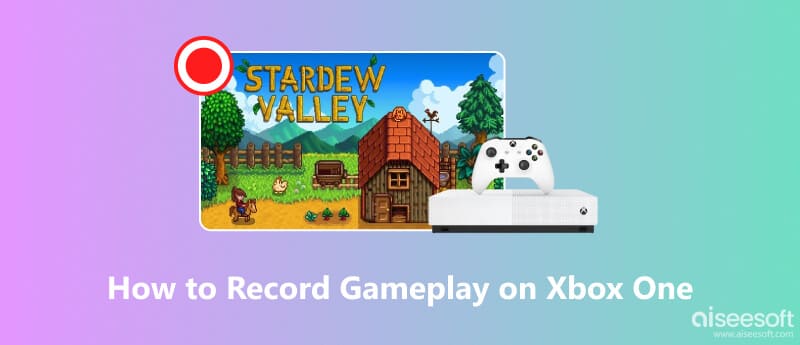
First, it should be clear that the Xbox One has a built-in Juego DVR (Digital Video Recorder) for quick gameplay captures. The powerful recording system runs in the background, continuously preserving a temporary buffer of your most recent gameplay. That ensures you never miss any valuable moment. Every Xbox One console comes with a recording feature that captures clips from the last 30 seconds or longer.
With simple button presses or voice commands, you can handily record gameplay on your Xbox One with the built-in Game DVR. This default recording way will not interrupt your game.
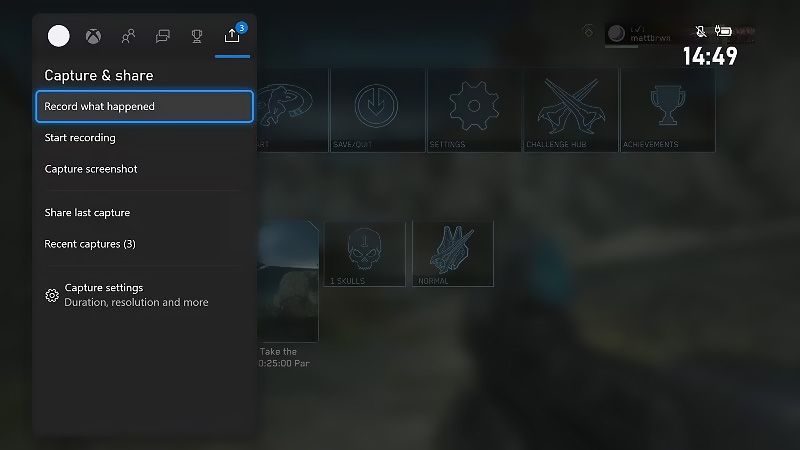
As mentioned, you can also use voice commands to start and control your Xbox One gameplay recording. Ensure you have a Kinect or a compatible headset.
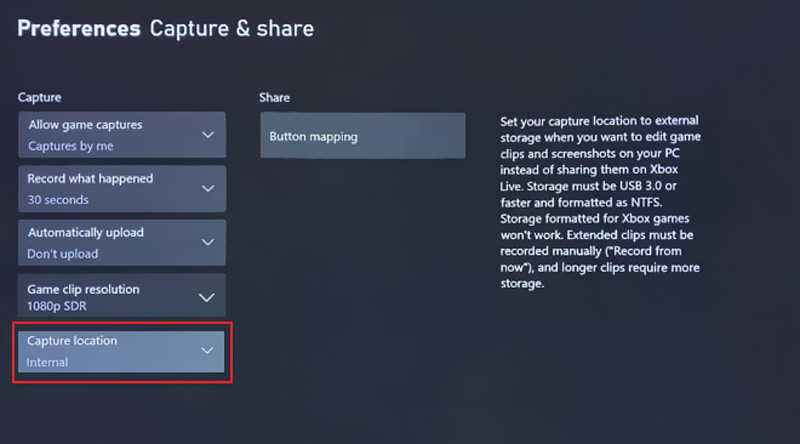
With Game DVR, you can record your gameplay up to 10 minutes. The Xbox screenshots and recording files will be stored in the console’s internal storage. The built-in recorder will capture all game audio. If you need to record your voice, you should connect a separate microphone to your controller or use a headset. What if you want to record gameplay on Xbox One longer than 10 minutes?
To bypass the time limit, you can connect a USB 3.0 external hard drive for gameplay recording. Connecting an external USB drive allows you to record for up to 1 hour.
También puede necesitar: [Pasos rápidos] Cómo tomar una captura de pantalla en Xbox y Xbox One
If you need the highest quality recordings and complete creative control, a capture card is often the professional’s choice. It connects the console to your Windows PC or Mac for better recording.
A capture card sends the video signal to your TV for gaming and to your computer for recording. More importantly, it can offload recording processing from the Xbox One, ensuring your game performance is not affected by high-quality recording.
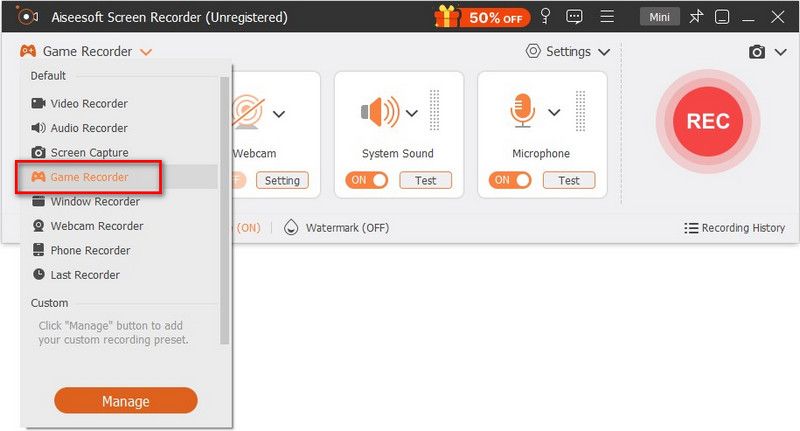
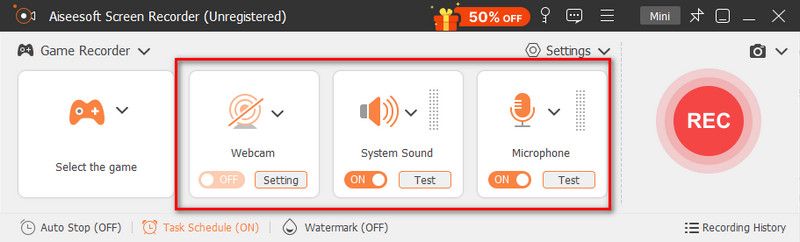
Some capture cards allow you to capture your Xbox One gameplay directly. They have a memory card for recording directly. However, most capture cards don’t support that. You still need a dedicated recording tool on your computer, such as Aiseesoft Screen Recorder. It offers an individual Grabador de juegos to record your gameplay on Xbox One with high quality.
100% Seguro. Sin anuncios.
100% Seguro. Sin anuncios.
Can I record my gameplay on Xbox One for longer than 10 minutes?
As mentioned above, due to the built-in system limitation, you can only capture your gameplay on Xbox One for less than 10 minutes. The game console’s Game DVR is limited to 10 minutes when saving to the internal storage. If you need to record over 10 minutes, you must use an external USB drive. What’s more, if you need recordings longer than an hour, you should rely on a capture card connected to a PC and dedicated software de grabación de juegos.
How long can I record on Xbox One?
The built-in game recorder on Xbox One allows you to capture a gaming clip of less than 10 minutes to its internal storage. After connecting an external hard drive, you can record full gaming sessions up to 1 hour. If you prefer to record on Xbox One without a time limit, you will need a capture card.
Where can I set my Xbox game console so it stays on longer?
To change how long your Xbox console stays active/awake, you should adjust the power mode. Press the Xbox button to choose Profile & system > Settings > General > Power mode & startup. Localiza el Turn off after option and select it. Then, you can pick a preferred time to prevent your console from turning off suddenly.
Conclusión
Recording your gameplay can be a necessary part of modern gaming. This post outlines three standard methods for recording gameplay on Xbox One. Whether you want to share gaming content on YouTube, Twitch, or other platforms, start with the convenient built-in Game DVR. For the professional recording, try the Aiseesoft Screen Recorder introduced earlier.
100% Seguro. Sin anuncios.
100% Seguro. Sin anuncios.
 Cómo grabar Pokémon Go: los mejores métodos para Switch, PC y móviles
¿Quieres grabar tus partidas de Pokémon Legends: ZA o Pokémon GO? Aprende a grabar partidas de Pokémon en alta calidad con las mejores herramientas.
 Cómo grabar juegos de Steam: domina el arte de grabar juegos
Aprenda a grabar juegos de Steam a través del tutorial agregado a este artículo. Descubra cuál de los tres es mejor para las necesidades de grabación de juegos.
 2 métodos verificados para grabar juegos en Nintendo Switch
Si prefiere jugar videojuegos en Nintendo Switch, está en el lugar correcto ya que esta guía comparte los métodos más fáciles para grabar su juego en Switch.
Aiseesoft Screen Recorder es el mejor software de grabación de pantalla para capturar cualquier actividad como videos en línea, llamadas de cámara web, juegos en Windows/Mac.
100% Seguro. Sin anuncios.
100% Seguro. Sin anuncios.

*Campo requerido
*Por favor ingrese un correo electrónico válido