Video Converter Ultimate
 100% Seguro. Sin anuncios.
Do you capture many HEIC photos on your iPhone and would like to turn them into a video like MOV? Is there an easy way to convert HEIC to MOV?
So you need to change photos into videos. In this guide, you will learn what HEIC and MOV formats actually are, why converting HEIC to MOV solves real problems, and get the right tool for the conversion.
HEIC por la Contenedores de imágenes de alta eficiencia and is the default image format for iPhone and iPad photos, starting with iOS 11 in 2017. This image container is built on HEVC (H.265) compression.
An HEIC file can be roughly la mitad del tamaño of a comparable JPEG while preserving the same perceived quality, which is a big deal on a device where storage is precious. HEIC can also store extras like Live Photo data and burst sequences, so it’s more than just a still image container.
MOV is Apple’s QuickTime multimedia container. A MOV file can hold video, audio, and even image sequences. It is ideal for professional editing workflows.
If you shoot photos on an iPhone, your camera roll will be full of files ending in .heic. They look fine on your phone, but the moment you try to copy one to a third-party image editor, send it to a Windows/Android device, or upload it to a social platform, you get the unsupported issue.
Converting HEIC to MOV is mainly for compatibilidad y flujo de trabajo.
HEIC is brilliant at what it does, but it is not universally loved. Windows does not abrir archivos HEIC. To view these iPhone photos, you need an extra codec from the Microsoft Store, and even then, support can be inconsistent.
Many browsers, including Chrome, Firefox, and Edge, don’t support HEIC natively because licensing HEVC is often expensive and complicated. Older Android phones also do not support it. Some older Photoshop and InDesign versions cannot recognize HEIC files by default.
If your goal is to incorporate still photos into a video project like a slideshow, a product demo, or a social media clip, converting HEIC images into a MOV is a good choice.
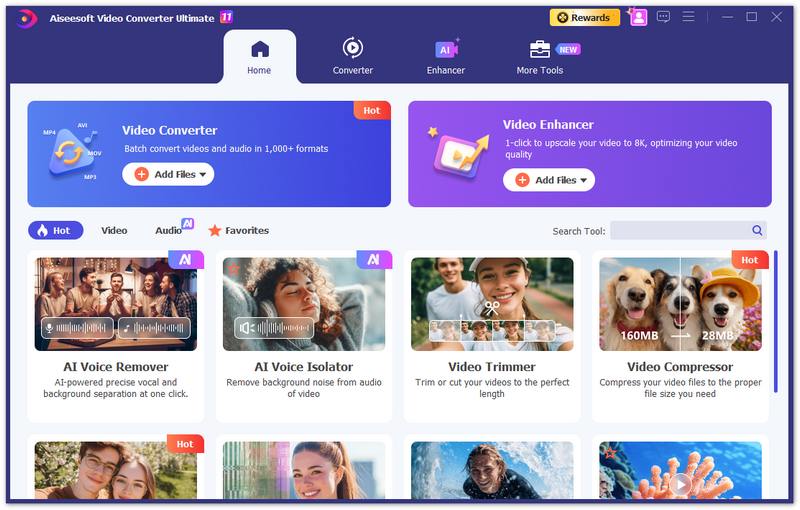
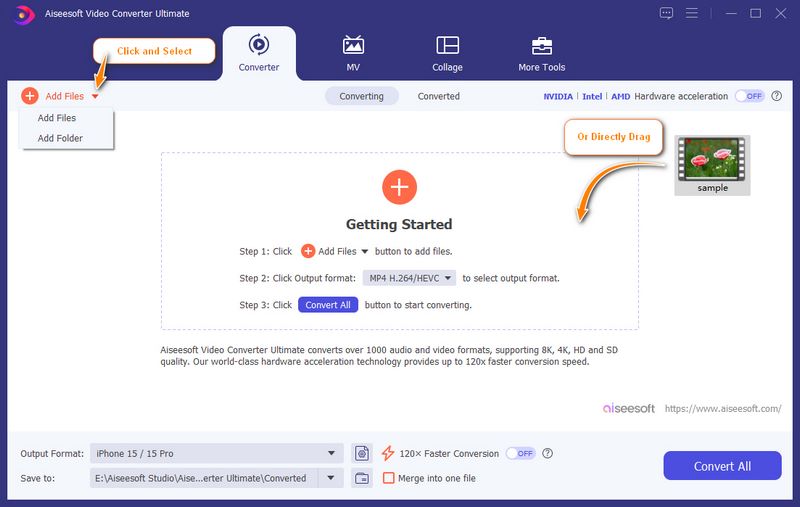
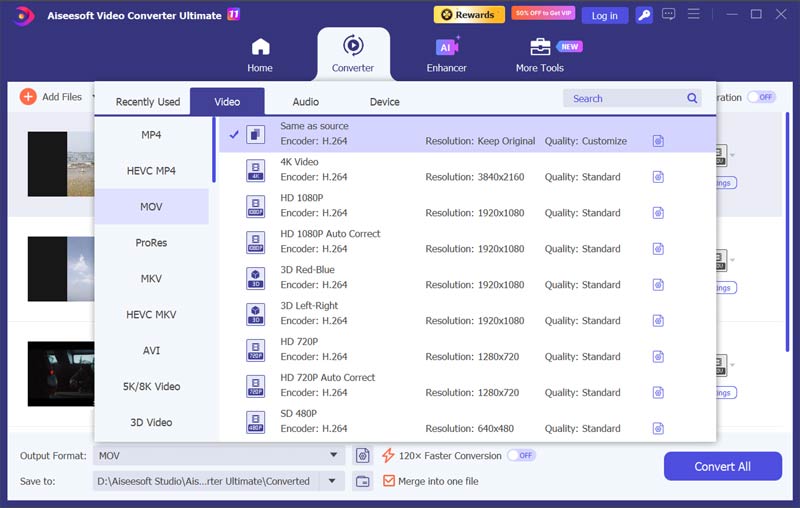
If you search for HEIC to MOV converters, you’ll find lots of lightweight web tools that export JPEGs. Most of them don’t allow you to handle multiple HEIC files and then combine them into a video. They also don’t give you control over quality or batch processing. Considering that, you are advised to use a desktop application like Aiseesoft Video Converter Ultimate. It provides a simple way to load your HEIC images and output them into MOV or another format you need.
100% Seguro. Sin anuncios.
100% Seguro. Sin anuncios.

Question 1. Is converting HEIC to MOV going to reduce image quality?
No. You can use the recommended Aiseesoft HEIC to MOV converter to avoid quality loss. This converter lets you control bitrate and resolution to keep quality high. However, if the HEIC Converter you used to re-encode the image stream, there is always some potential for generational loss.
Question 2. Can I just rename a HEIC file to .mov?
No. Renaming a file (changing the file extension from .heic to .mov) does not change its internal structure. A HEIC file and a MOV file are built differently at the container level. Changing the extension will confuse viewers and editors rather than convert the file.
Question 3. Is there a free way to make the HEIC-to-MOV conversion?
Yes. Many web-based converters and some open-source tools can do HEIC-to-MOV conversions. However, free online tools often have limits, watermarks, or output controls. If you are converting one or two photos, a free tool may be enough. However, if you often process batches or need advanced functions, turn to a dedicated desktop tool.
Conclusión
HEIC is a good format to capture photos efficiently on Apple devices. However, its limited compatibility causes real headaches for users who edit or share media across platforms. Converting HEIC to MOV is a necessary fix. Tools like Aiseesoft Video Converter Ultimate make the conversion straightforward. You can download it and start a trial.
 ¿Por qué no puedo abrir fotos HEIC en iPhone? ¿Cómo solucionarlo?
Si tus imágenes HEIC no se abren en el iPhone y no sabes por qué, lee este artículo. Analizaremos las causas y te daremos soluciones.
 Los 5 principales visores HEIC disponibles para Windows 10/8/7 y computadoras anteriores
Si desea ver fotos HEIC, debe tener una herramienta de visualización HEIC. Esta lista muestra los mejores visores HEIC para PC.
 HEIC vs JPEG ¿Cuáles son las diferencias entre el formato HEIC y JPEG?
Los archivos JPG están comprimidos, pero los archivos HEIC logran una compresión aún mayor sin sacrificar la calidad. Esta publicación te cuenta las diferencias entre HEIC y JPEG.
Convertir/Descargar/Editar SWF
1.1 fondos soberanos1.2 SWF a MP41.3 SWF a GIF1.4 SWF a MOV1.5 SWF a HTML51.6 SWF a AVI1.7 SWF a WMV1.8 SWF a 3GP1.9 SWF a DVD1.10 Convertidor SWF Mac1.11 Editar SWF
Video Converter Ultimate es un excelente conversor, editor y potenciador de video para convertir, mejorar y editar videos y música en 1000 formatos y más.
100% Seguro. Sin anuncios.
100% Seguro. Sin anuncios.

*Campo requerido
*Por favor ingrese un correo electrónico válido