Mejor potenciador de vídeo: mejora la calidad del vídeo a 4K/8K
 100% Seguro. Sin anuncios.
100% Seguro. Sin anuncios.
Premiere Pro es una herramienta profesional de edición de video desarrollada por Adobe. Cuenta con todas las funciones necesarias para editar y crear videos. Este potente software es ampliamente utilizado por editores, youtubers, creadores de contenido y cineastas de todo el mundo. Esta guía explica... Cómo mejorar la calidad del vídeo en Premiere Pro.
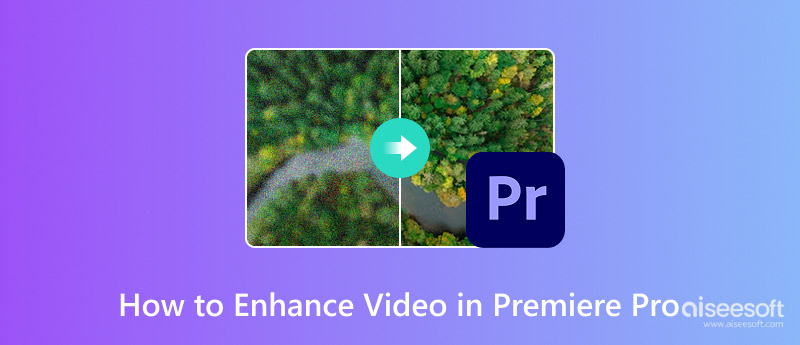
Puedes mejorar fácilmente la calidad general corrigiendo problemas comunes de video, como baja resolución, borrosidad, ruido digital y color. La primera parte te guiará por estas correcciones básicas, como la nitidez, el aumento de escala y la corrección de color.
Premiere Pro cuenta con herramientas integradas para mejorar rápidamente el metraje borroso o de aspecto suave. Puedes aplicar sus efectos de nitidez para realzar los detalles de los bordes y mejorar la calidad.
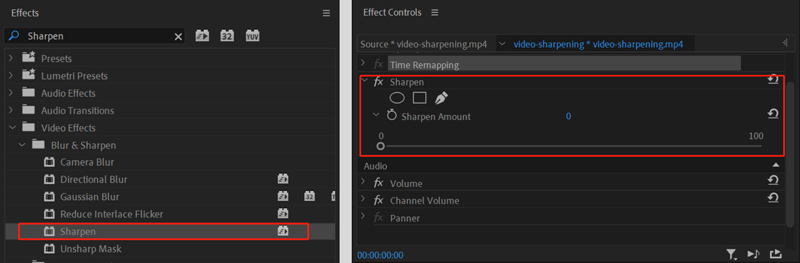
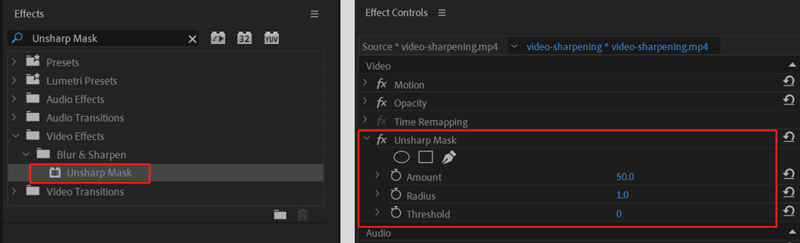
Puedes enfocar tu video para que se vea más nítido. Para un control más preciso, puedes aplicar el efecto "Máscara de enfoque". Ofrece tres parámetros para controlar mejor la intensidad del enfoque y mejorar la calidad.
Premiere Pro no cuenta con una función específica de "Reducción de ruido" para gestionar el metraje granulado o con ruido. Para lograr resultados similares de reducción de ruido, puede confiar en... Mediana Efecto. De igual forma, puedes encontrar el efecto en Efectos de Video. Cuando encuentres Mediana, aplícala a tu clip.
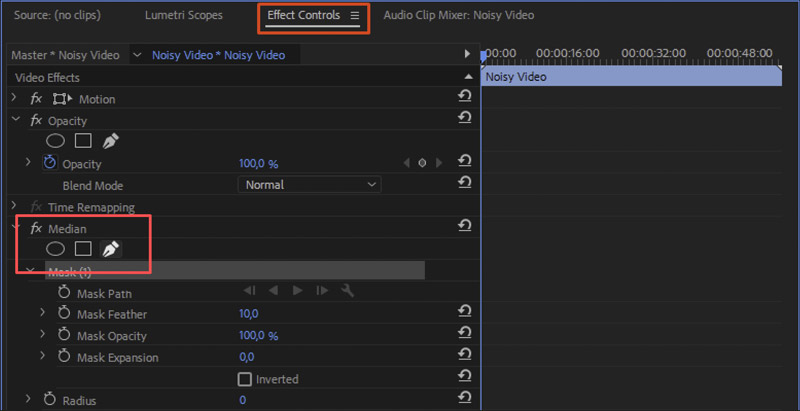
Tenga en cuenta que Premiere Pro incluye un Eliminación de ruido Función para reducir el ruido de fondo en la pista de audio. Puedes encontrarla en Efectos de audio > Reducción/Restauración de ruido.
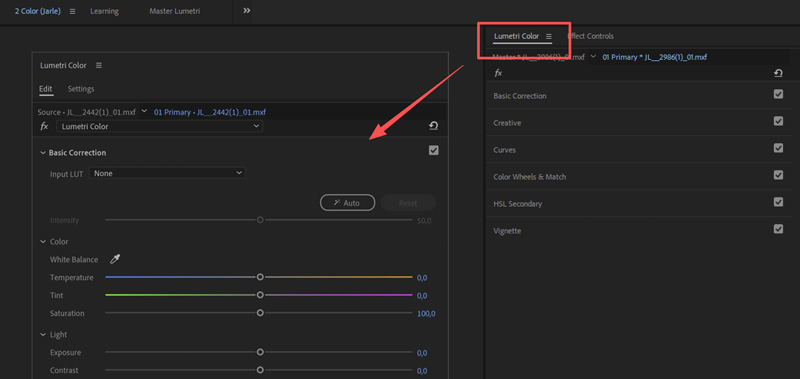
La corrección de color puede ayudarte a corregir problemas y lograr un aspecto natural. Ir a Color lumetri Para acceder a las opciones relacionadas. El panel es el centro de todo el trabajo con el color.
Empezar en el Corrección Básica Pestaña para corregir el balance de blancos, la saturación, la exposición y otros problemas de color. También puedes usar curvas Para ajustes avanzados. Por ejemplo, las "Curvas RGB" permiten personalizar y controlar con precisión el contraste y el brillo.
Una vez que domines estos conceptos básicos, puedes comenzar con técnicas avanzadas para optimizar aún más tu flujo de trabajo y mejorar tu video. Crea un Capa de ajuste y colócala sobre los clips en tu línea de tiempo. Después, aplica varios efectos a esta capa. Esto puede ayudar a crear una apariencia consistente y facilitar los ajustes globales.
Si bien Premiere Pro es potente, no está diseñado principalmente para el embellecimiento de videos. Los potenciadores de IA dedicados a menudo pueden producir resultados superiores con menos esfuerzo, especialmente para tareas como el aumento de resolución. de corrección de colory restauración de detalles. Además, al elegir un programa de mejora de video, también debe considerar el costo. Premiere Pro es bastante caro (US$22.99/mes). No es la opción ideal para la mayoría de los usuarios.
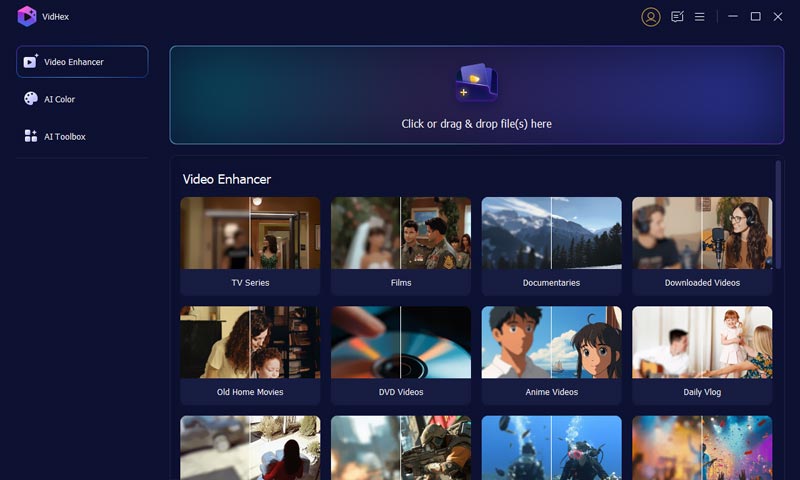
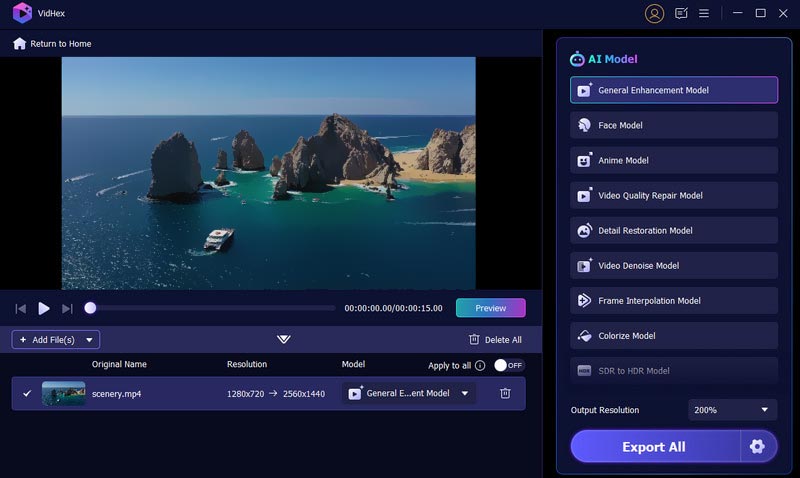
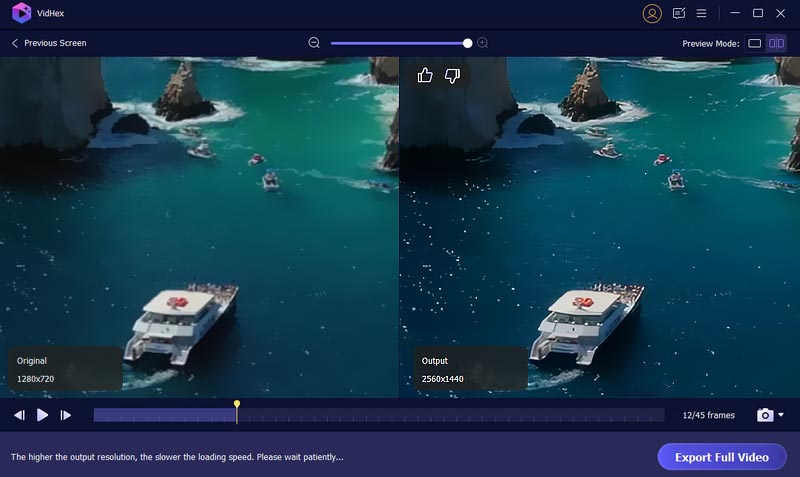
Si necesita una alternativa a Premiere Pro para mejorar los videos, comience con el confiable Aiseesoft VidHexEl software es reconocido por sus excepcionales capacidades de escalado y reducción de ruido de video. Además, ofrece múltiples modelos de IA entrenados para diferentes tareas de mejora, como interpolación de velocidad de fotogramas, desentrelazado, corrección de color y reducción de ruido de video.
100% Seguro. Sin anuncios.
100% Seguro. Sin anuncios.
Pregunta 1. ¿Cómo hacer que un video borroso sea más claro en Premiere Pro?
Adobe Premiere Pro ofrece varios métodos efectivos para que un video pixelado o borroso se vea más nítido. Primero, puedes aplicar el efecto de enfoque integrado a tu metraje para una solución rápida. Además, puedes usar herramientas más avanzadas como Máscara de enfoque y Lumetri Color para aumentar la claridad de tu video borroso. Además, puedes usar varios plugins de terceros con Premiere Pro para enfocar videos.
Pregunta 2. ¿Cómo convertir un vídeo de baja calidad a uno de mayor calidad?
Cuando necesite mejorar la calidad de los vídeosDeberías usar un optimizador con IA. Es fundamental comprender que los editores tradicionales no pueden crear información que no existía previamente. En ese caso, no generarán una calidad realmente mejorada. Puedes usar tecnología de IA moderna (como VidHex) para analizar inteligentemente el metraje original y reconstruir el aspecto de ese detalle faltante. Los resultados finales de la mejora pueden ser mucho mejores.
Pregunta 3. ¿Cuál es el mejor potenciador de vídeo gratuito?
Debes seleccionar la mejor herramienta según tus necesidades específicas de mejora. Por ejemplo, debes decidir si quieres enfocar imágenes borrosas, aumentar la resolución, corregir colores o realizar otras mejoras. Además, debes seleccionar un mejorador de video adecuado según si trabajas en una computadora o un teléfono. Entre los mejores mejoradores de video gratuitos se incluyen CapCut, Remini, Picwand AI Video Enhancer, YouCut Video Editor y Video2X.
Conclusión
Premiere Pro ofrece varias funciones para transformar material sin editar en contenido de alta calidad. Puedes aprender a... mejorar la calidad del vídeo en Premiere Pro Desde esta página. Si no tienes software de Adobe, puedes ir directamente a la alternativa recomendada para la mejora de video con IA. Esta alternativa es más eficaz para las tareas más exigentes.
 Aprende a estabilizar tu vídeo en Adobe Premiere Pro
¿Se puede estabilizar un vídeo en Premiere Pro? ¿Premiere Elements ofrece una buena estabilización? Consulta la guía detallada sobre cómo estabilizar vídeos en Premiere.
 ¿Qué debemos hacer para cambiar el tamaño de la imagen en Premiere Pro?
Lea nuestra guía si desea saber cómo cambiar el tamaño de la imagen en Premiere Pro. Le proporcionaremos la guía más detallada y otra herramienta para principiantes.
 Transición a Premiere Pro: explore efectos, cómo importar y alternativas
Sumérgete en un mundo donde las transiciones de Premiere Pro son indispensables para la producción de video, haciendo que la transición sea aún más fluida como alternativa.
VidHex es un mejorador de video impulsado por IA que amplía, elimina ruido, colorea, estabiliza y mejora la calidad del video en 1 clic.
100% Seguro. Sin anuncios.
100% Seguro. Sin anuncios.

*Campo requerido
*Por favor ingrese un correo electrónico válido