
Video Converter Ultimate
 100% Seguro. Sin anuncios.
If you often handle video files on old DVD or Blu-ray discs, you may be familiar with the TS format. Some captured shows (HDTV recordings) and downloaded broadcasts may also end up with a “.ts” extension.
We have to admit that TS is not a welcome format for many users, and even players.
In most cases, you should convert it to MP4 or MP3 for different needs. This guide mainly focuses on the TS-to-MP3 conversion. If you only need the audio track, such as a lecture, an interview, or a song from a broadcast, you can use the three methods below to extract MP3 audio from your TS files with ease.
TS son las siglas de Transport Stream, a container format mainly designed for streaming, digital TV broadcast, and set-top box recordings. A TS file can hold video, audio, and metadata. It is widely used in digital television and IPTV systems. You can also find them on DVD and Blu-ray discs. The significant advantage is that TS can minimize data loss during poor signal conditions. This is ideal for broadcasting and streaming.
For several main reasons, you may want to convert TS to MP3.
First, it is for wider compatibility. If you only need an audio track, MP3 is often the best choice. It is universally supported, while TS files can refuse to play on regular players.
Second, you can shrink the file size through conversion. Again, if you only need the audio, MP3 shrinks it dramatically.
Third, converting TS to MP3 can bring a lot of convenience. You can easily put the converted MP3 into any app, workflow, or device.
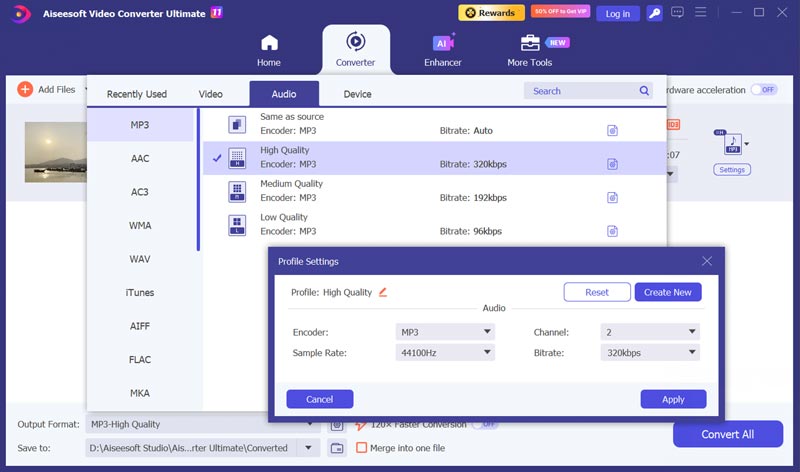
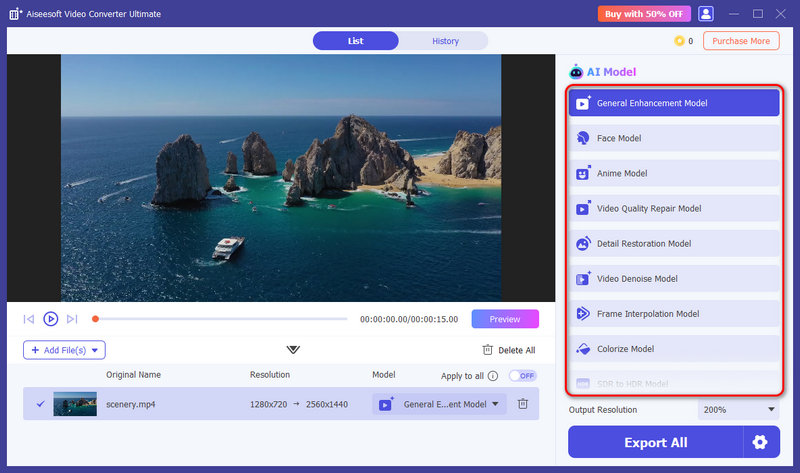
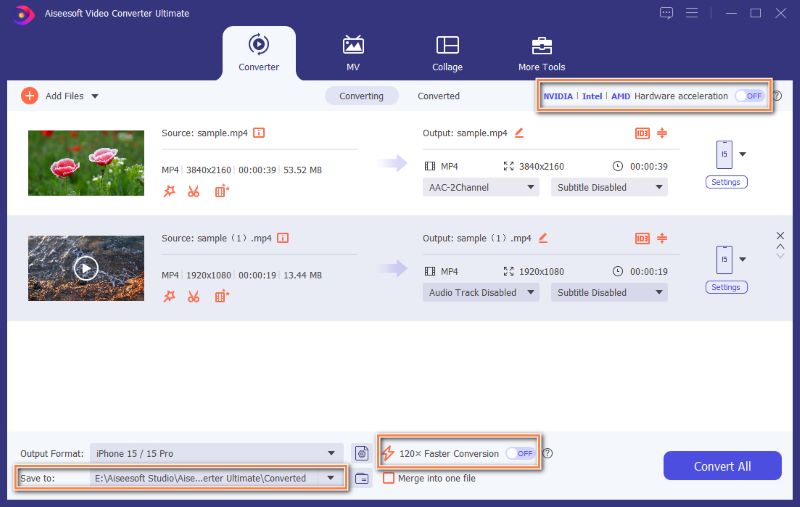
If you often have conversion needs, or need to handle multiple TS files, a dedicated desktop tool is worth the install. Aiseesoft Video Converter Ultimate has been a reputable conversion tool for over 10 years. It handles TS-to-MP3 without sound quality loss. Moreover, the software gives you control over quality, bitrate, channel, and sample rate.
100% Seguro. Sin anuncios.
100% Seguro. Sin anuncios.
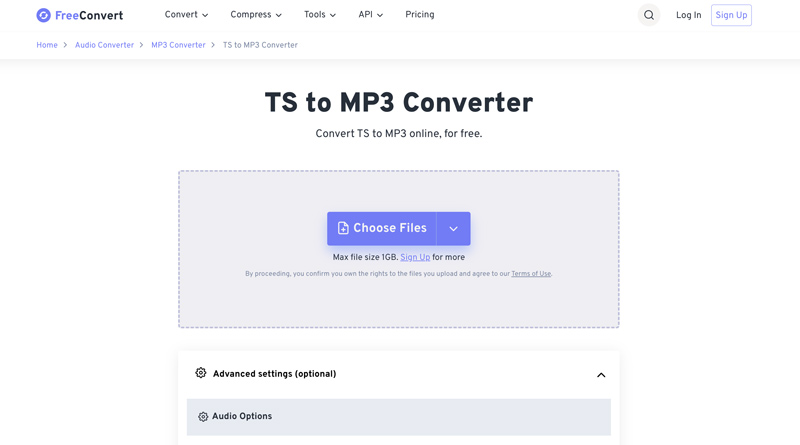
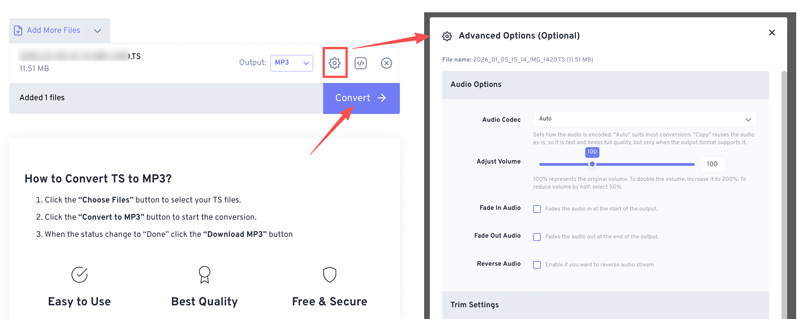
When you only need one file converted, and you don’t want to install anything, an online converter is a good choice. Tools like FreeConvert, Convertio, Restream, and Clideo all do basically the same job: upload, pick MP3, convert, download. This section takes FreeConvert TS to MP3 Converter como ejemplo.
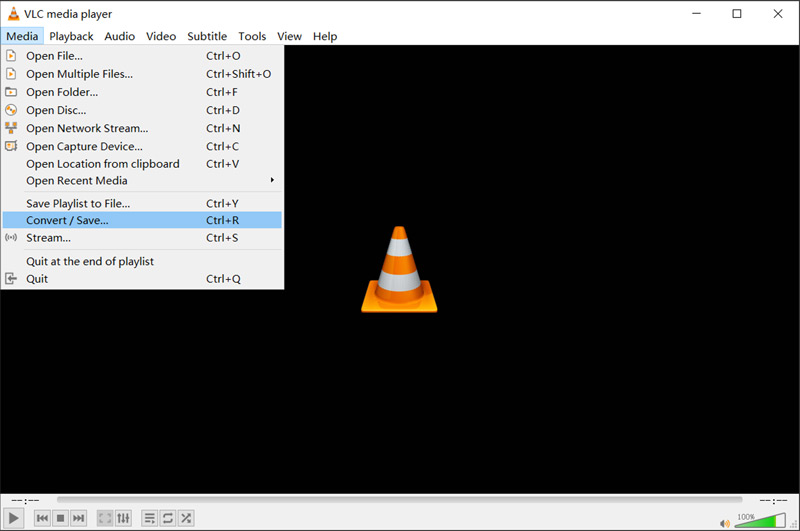
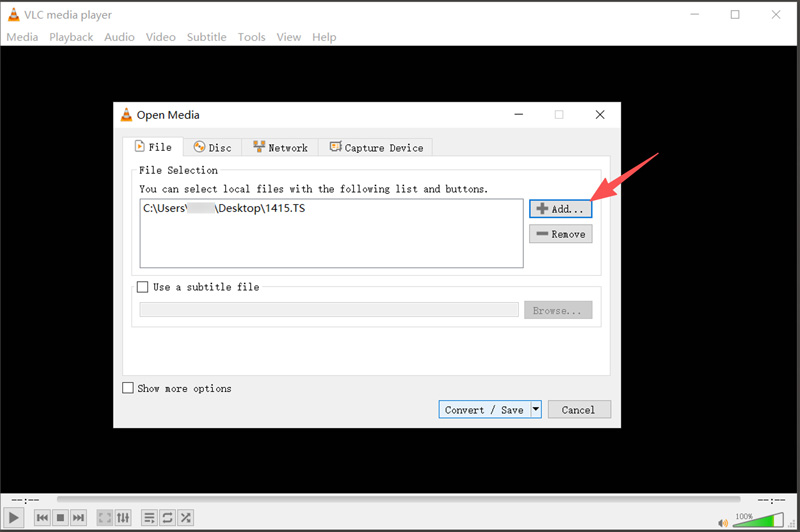
VLC Media Player can extract audio from video without installing a separate converter. If you already have it on your computer, try using its “Convert/Save” tool to convert TS to MP3.
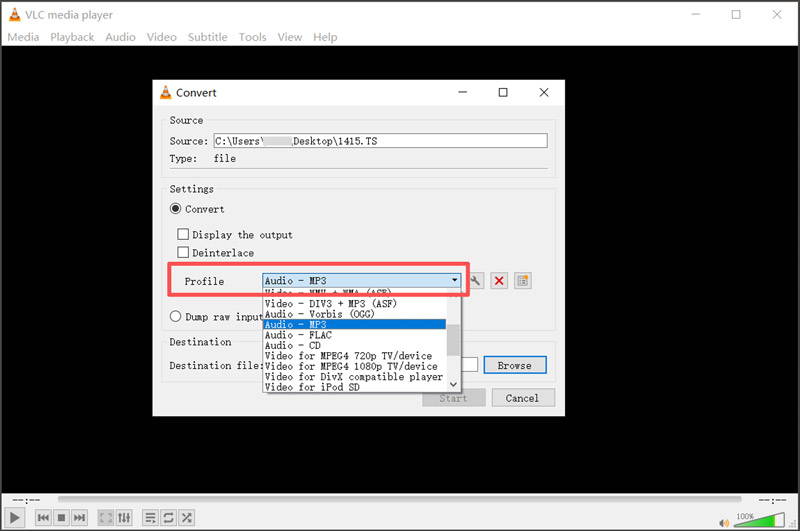
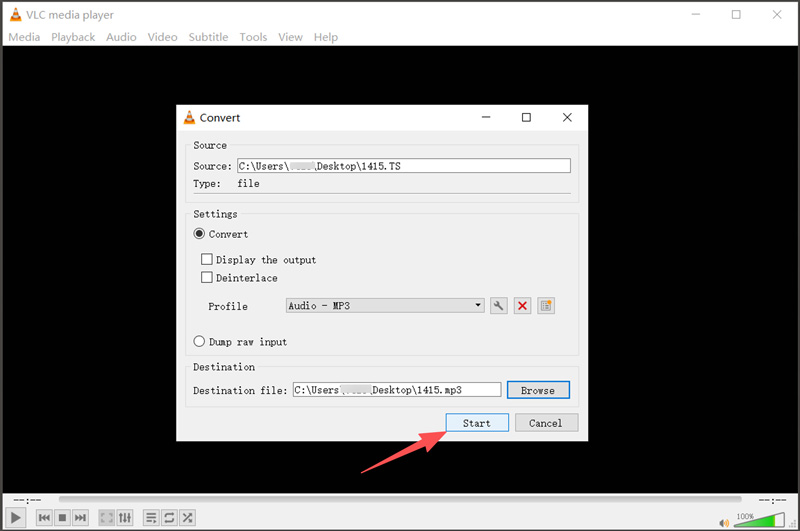
También puede Convertir archivos de vídeo a MP4 con VLC.
Question 1. How can I open a TS file on my Mac?
You may find that the default player on your Mac does not support TS files natively. In that case, you will need a third-party player like VLC to open them. Otherwise, you can convertir TS a MP4 or MOV for playback on a Mac.
Question 2. Why won’t my TS file convert?
A TS file usually won’t convert for one of a few reasons. The most common reason is due to DRM encryption or copy protection. Your conversion tool is not allowed to touch protected files. Sometimes, the problem is caused by file corruption. The damaged TS file may play fine in VLC, but it lacks the necessary PAT/PMT metadata for your converter to locate the audio track. In some cases, the unsupported audio codec is the cause.
Question 3. Can I convert multiple TS files to MP3 at once?
Yes, you can convert multiple TS files to MP3 at once. You can use the introduced Aiseesoft Video Converter Ultimate to make batch conversions with ease. Actually, VLC can also batch-process files through its Convert/Save dialog. You can add several files and then convert them to MP3 or another format you need.
Conclusión
Puede seleccionar la derecha TS-to-MP3 conversion method depending on your goal and habits. If you convert often, a desktop tool like Aiseesoft is the ideal choice. If it’s a one-off, an online converter gets you there in under a few minutes. And if you already have VLC, try converting videos using its Convert/Save feature.
 Los 4 mejores reproductores de películas en DVD profesionales para probar en su PC/Mac
¿Cómo elegir el mejor reproductor de DVD para ver películas en discos? Aquí, consulte los siguientes reproductores multimedia con varias funcionalidades para una reproducción fluida.
 Cómo convertir TS a AVI fácilmente [Windows 10 incluido]
Tutorial de TS a AVI: cuando tiene videos en formato TS, necesita convertir TS a AVI para poder reproducirlos en los dispositivos. Aprenda el mejor método para transcodificar archivos TS a AVI ahora.
 Cómo convertir VOB a MP4 sin pérdida en Windows y Mac
¿Es posible convertir VOB a MP4? ¡Sí! Si está buscando una herramienta de escritorio o en línea para convertir sus videos VOB desde la carpeta DVD, conozca los pasos aquí.
Convertir/Descargar/Editar SWF
1.1 fondos soberanos1.2 SWF a MP41.3 SWF a GIF1.4 SWF a MOV1.5 SWF a HTML51.6 SWF a AVI1.7 SWF a WMV1.8 SWF a 3GP1.9 SWF a DVD1.10 Convertidor SWF Mac1.11 Editar SWF
Video Converter Ultimate es un excelente conversor, editor y potenciador de video para convertir, mejorar y editar videos y música en 1000 formatos y más.
100% Seguro. Sin anuncios.
100% Seguro. Sin anuncios.

*Campo requerido
*Por favor ingrese un correo electrónico válido