Contenido
Transferring photos from a PC to an iPad should be simple, but Apple’s file management system can make the process confusing. Unlike Android devices, Windows File Explorer cannot copy photos directly into the iPad Photos library because iPad storage is not exposed as a writable USB drive.
Fortunately, there are several ways to transfer photos from a Windows PC to an iPad, including using Apple’s official tools, cloud services, and professional iPad transfer software.
This guide explains how to transfer photos from PC to iPad with or without iTunes and helps you choose the best method based on your needs.
| Método | Uso recomendado | Need iTunes? | ¿Internet requerido? | Limitación principal |
| Aiseesoft FoneEase | Fast local transfer | No | No | Requiere software de terceros |
| Dispositivos Apple/iTunes | Official Apple sync | Sí: | No | Sync restrictions |
| iCloud Fotos | Usuarios del ecosistema Apple | No | Sí: | Almacenamiento libre limitado |
| Google Fotos | Acceso multiplataforma | No | Sí: | Photos remain in Google Photos until downloaded to the Photos app |
| Google Drive/Dropbox | Compartición de archivos | No | Sí: | Requires manually saving photos to the Photos app |
| Correo electrónico | algunas fotos | No | Sí: | Limited attachment size; not suitable for large batches |
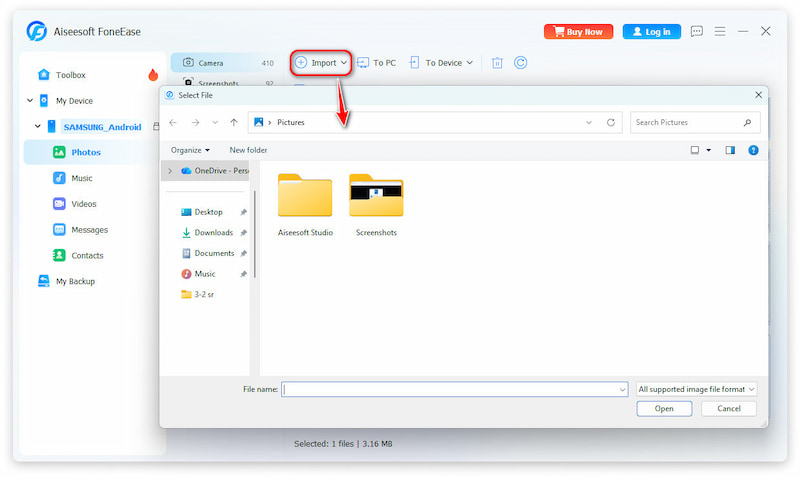
Aiseesoft FoneEase is a professional iOS data management tool that helps transfer photos between computers and iPhones/iPads without complicated syncing steps. Unlike iTunes, which requires syncing an entire photo folder, FoneEase lets you choose specific photos and transfer them directly to your iPad.
 100% Seguro. Sin anuncios.
Apple provides official ways to transfer photos from a Windows PC to an iPad. Most Windows users can sync photos using iTunes, while iCloud for Windows provides wireless synchronization. Depending on your Windows version, you may also use Apple's newer device management apps for managing your iPad.
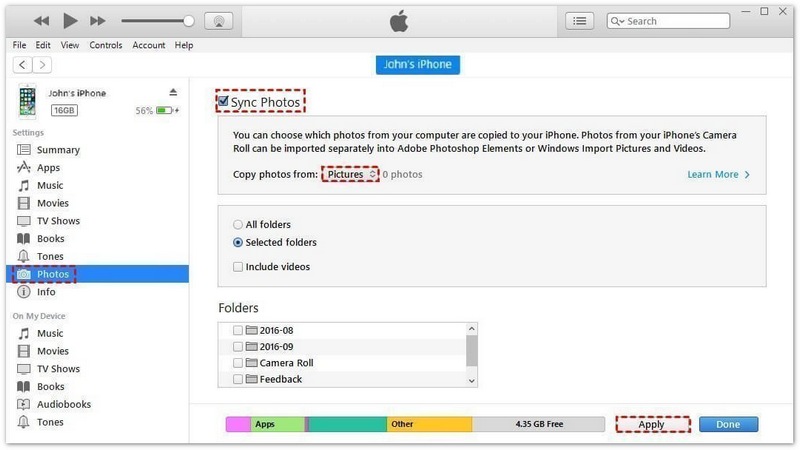
Limitations of Apple Photo Sync
Although Apple’s method works, it has some restrictions:
This method is better for users who want official Apple syncing rather than quick file transfer.
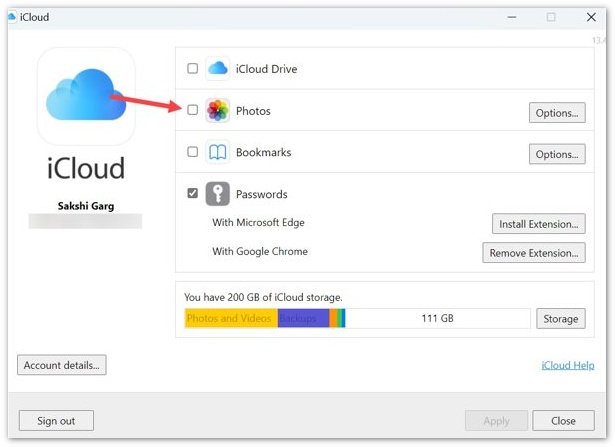
iCloud Photos is Apple's cloud-based solution for keeping photos available across Apple devices. It works well if you already use iCloud and want automatic photo synchronization.
En iPad:
En PC:
PROS
CONTRAS
Google Photos is useful for users who want access to pictures across different platforms. You can upload photos from your Windows PC and view them on your iPad through the Google Photos app.

Mejor para:
Limitaciones:
If you don't have a USB cable available, cloud storage services like Google Drive and Dropbox make it easy to transfer photos wirelessly. Simply upload the photos from your PC and download them on your iPad using the same account.
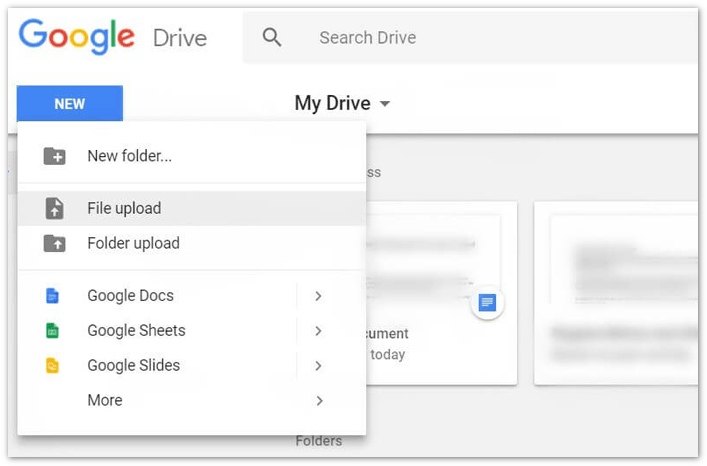
This method is convenient for file sharing but may not be the best choice if you want photos directly inside the Apple Photos app.
If you only need to transfer a few photos, sending them to yourself by email is one of the quickest methods. Since most email services have attachment size limits, this method is best for a small number of images.
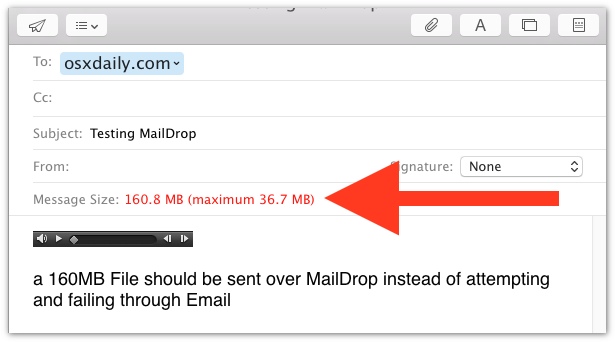
However, email is not recommended for large photo collections because most services limit attachment size. Most email providers limit attachments to around 20–25 MB per email. If your photos exceed the limit, compress them or use a dedicated iPad transfer tool .
Why Can't I Drag Photos from PC to iPad?
Windows may recognize your iPad as a camera device, but it does not allow copying photos directly into the iPad Photos library. Use Apple Devices, iCloud, or an iOS transfer tool like FoneEase instead.
100% Seguro. Sin anuncios.
Why Does My iPad Not Show the Trust Prompt?
Pruebe estas soluciones:
Why Are My iCloud Photos Not Showing on iPad?
Comprobar:
Why Don't My Imported Photos Appear in the Photos App?
Posibles razones incluyen:
¿Puedo transferir fotos de mi PC a mi iPad sin iTunes?
Yes. You can use Aiseesoft FoneEase, iCloud Photos, Google Photos, or cloud storage services to transfer photos without iTunes. For the fastest local transfer, a USB-based iOS transfer tool is usually more convenient.
Can I transfer photos from PC to iPad using a USB cable?
A USB connection provides faster transfer speeds and does not depend on internet speed.
Why can't I copy photos directly to my iPad from Windows Explorer?
Apple does not treat iPad storage like a normal USB drive. File Explorer mainly supports importing photos from iPad to PC, not adding pictures into the iPad Photos library.
What is the fastest way to transfer photos from PC to iPad?
For most Windows users, transferring photos through a USB connection with Aiseesoft FoneEase is one of the fastest methods because it avoids cloud upload and Apple sync restrictions.
Conclusión
Hay muchas maneras de transferir fotos de la PC al iPad, but the best method depends on whether you prefer speed, convenience, or official Apple solutions.
Apple's official solutions, such as iTunes and iCloud Photos, work well for users inside the Apple ecosystem, while Google Photos and cloud drives are useful for cross-platform access.
If you want a simple way to transfer selected photos from your computer to your iPad without iTunes or cloud limitations, Aiseesoft FoneEase provides a faster and more flexible solution.
100% Seguro. Sin anuncios.
 Pérdida de calidad de vídeo en Google Fotos: causas y cómo solucionarlo
¿Por qué se ven borrosos los videos de Google Fotos? Descubre las causas, como problemas de compresión y sincronización, además de soluciones efectivas para corregir y restaurar la calidad del video.
 Google Fotos no realiza copias de seguridad: cómo guardar y recuperar tus fotos
¿Tienes problemas con la copia de seguridad de Google Fotos? Descubre por qué ocurre, cómo solucionarlo fácilmente y cómo recuperar tus fotos de forma segura con la mejor herramienta.
 Recupera fotos eliminadas de tu iPad o iPod Touch con o sin copia de seguridad.
¿Quieres saber cómo recuperar fotos borradas en tu iPad o iPod touch? Esta guía te muestra los pasos para recuperar tus fotos perdidas de forma segura, tengas o no una copia de seguridad.

Aiseesoft FoneEase es una herramienta de transferencia y gestión de datos que te permite mover, hacer copias de seguridad y gestionar sin problemas diversos datos entre dispositivos iOS, Android y ordenadores, sin necesidad de reiniciar el teléfono ni depender de iTunes.
100% Seguro. Sin anuncios.

*Campo requerido
*Por favor ingrese un correo electrónico válido