Más de 50,000 usuarios confían en Aiseesoft Android Unlocker
 100% Seguro. Sin anuncios.
100% Seguro. Sin anuncios.
Contenido
¿Alguna vez has cogido tu Samsung S22 Ultra y te has dado cuenta de que has olvidado por completo tu contraseña, PIN o patrón? No te preocupes, a mí también me ha pasado. Primero entra el pánico, luego los intentos desesperados de adivinar la contraseña... y luego la certeza de que te has quedado aún más bloqueado.
Por suerte, Desbloquear un Samsung S22 Ultra No es tan aterrador como parece. Con el tiempo, hemos probado varios métodos: algunos rápidos, otros un poco técnicos y otros que nos salvaron cuando creíamos que el teléfono estaba arruinado para siempre. En esta guía, te explicaremos cuatro maneras sencillas de recuperar el acceso, desde software profesional hasta herramientas nativas de Samsung/Google, para que aprendas exactamente a desbloquear el Samsung S22 Ultra y puedas volver a navegar por TikTok (o, ya sabes, a hacer algo productivo).

Si busca un método sencillo y fiable, usar una herramienta de desbloqueo profesional suele ser la solución más sencilla. Un programa que he probado personalmente es Desbloqueador de Android Aiseesoft, y nunca me ha fallado cuando he tenido que lidiar con contraseñas olvidadas, PIN o incluso problemas con huellas dactilares.
Es una opción premium y segura que supera las limitaciones de los métodos gratuitos. Es a lo que recurres cuando estás completamente bloqueado y necesitas una solución garantizada.
| Característica | Por qué es importante para tu S22 Ultra |
| Bloqueo de pantalla de bypass | Elimina PIN, patrones, contraseñas, huellas dactilares e incluso reconocimiento facial en minutos. Imprescindible si olvidas tu contraseña principal y necesitas saber cómo desbloquear el Samsung S22 sin contraseña. |
| Eliminación de FRP | Diseñado específicamente para eliminar el bloqueo FRP de Google sin necesidad de contraseña. Si compraste un teléfono a alguien que no lo restableció a la configuración de fábrica correctamente, esta es la herramienta ideal para desbloquear el Samsung S22. |
| Alta tasa de éxito | Debido a que es un programa dedicado, a menudo tiene una tasa de éxito mayor que confiar en exploits manuales o configuraciones de cuenta que pueden no estar habilitadas. |
Pasos para utilizar Aiseesoft Android Unlocker:
100% Seguro. Sin anuncios.
100% Seguro. Sin anuncios.
Inicie el software y conecte su Samsung S22 Ultra usando un cable USB de buena calidad.
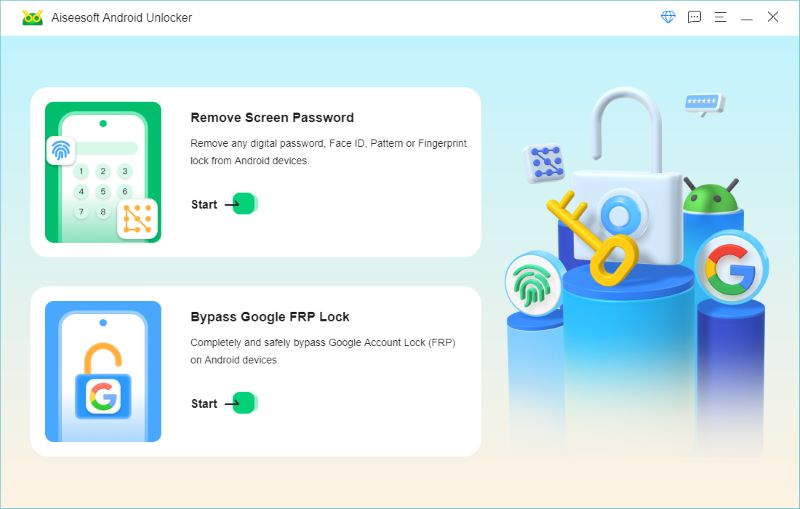
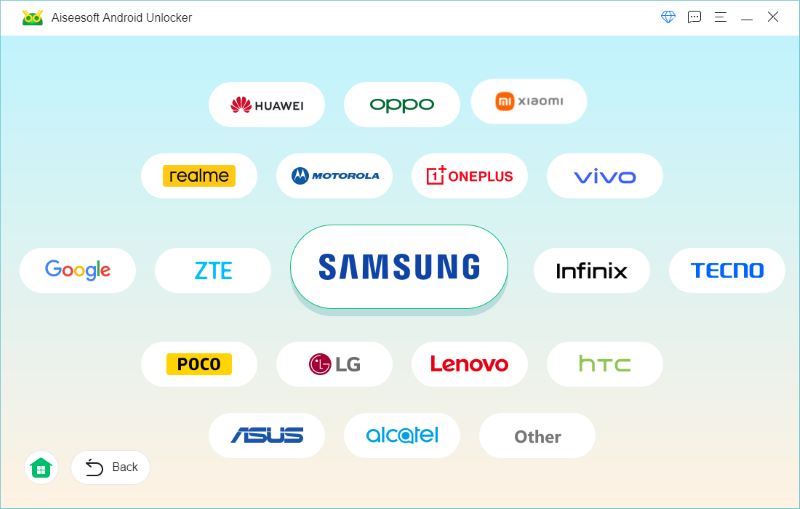
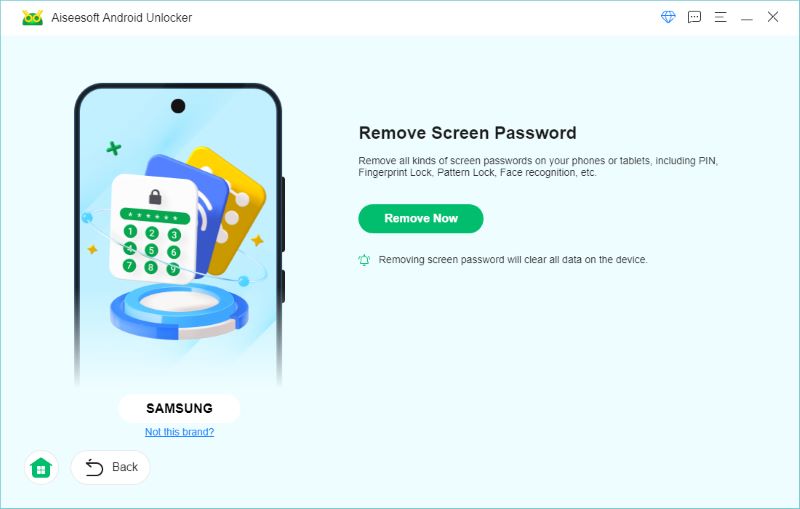
Una vez finalizado el proceso, tu teléfono se reiniciará y el bloqueo desaparecerá.
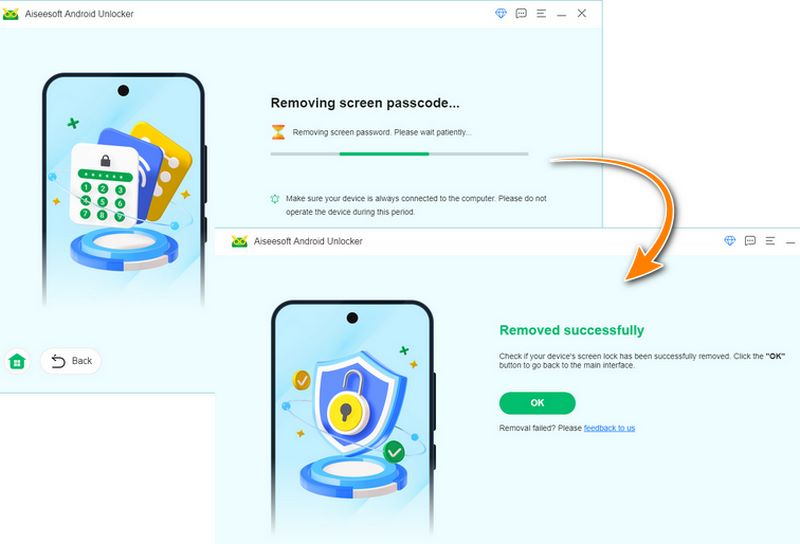
Eso es todo y tu Samsung S22 Ultra debería estar accesible nuevamente.
El Administrador de dispositivos Android de Google (ahora llamado Buscar mi dispositivo) es otro método útil. Esta opción solo funciona si:
• Su teléfono está conectado a Internet.
• Su cuenta de Google ha iniciado sesión.
• La función Buscar mi dispositivo está activada.
Pasos para desbloquear a través de Google Find My Device:
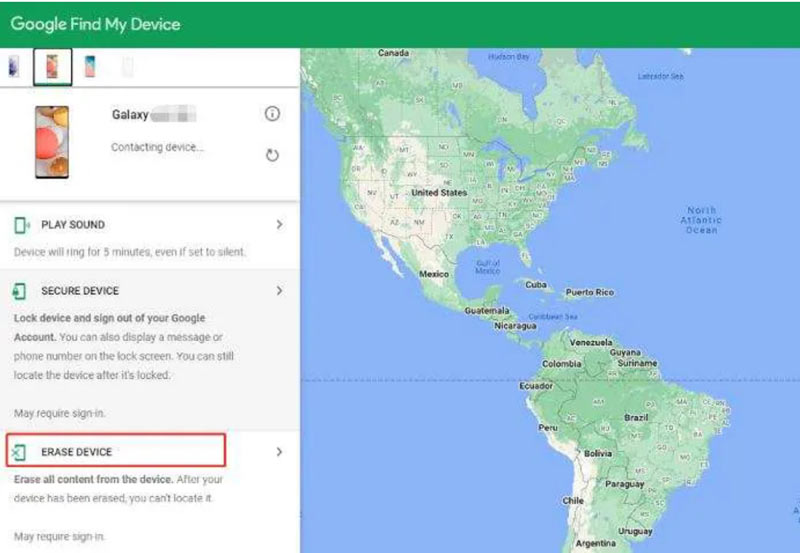
El 'Borrar dispositivoLa opción "'" restablecerá tu teléfono a la configuración de fábrica de forma remota, borrando todos los datos (fotos, aplicaciones, configuración), pero eliminando el bloqueo de pantalla olvidado. Es la única opción disponible en el servicio de Google para este tipo de bloqueo, así que prepárate para una posible pérdida de datos.
Además, se recomienda que desarrolle el hábito de realizar copias de seguridad de su teléfono Samsung para evitar la pérdida de datos.
Si eres fiel al ecosistema Samsung como yo, la función Buscar mi Móvil es un salvavidas. Funciona incluso cuando fallan las opciones de Google.
Requisitos
• Debes tener una cuenta Samsung vinculada a tu S22 Ultra.
• El teléfono debe estar conectado a Internet.
• La función de desbloqueo remoto debe estar habilitada en la configuración de su teléfono antes de que se bloquee (Configuración > Datos biométricos y seguridad > Buscar mi móvil > Desbloqueo remoto).
Pasos para desbloquear a través de Samsung Find My Mobile:

Si tiene éxito, el bloqueo de pantalla (patrón, PIN o contraseña) se eliminará de forma remota de su teléfono sin borrar sus datos.
Créeme, si aún no lo has hecho, ¡inicia sesión en tu cuenta Samsung en tu teléfono y activa el Desbloqueo Remoto ahora mismo! Es la diferencia entre guardar todos tus datos y perderlos si olvidas tu contraseña.
Si no puede acceder a sus cuentas de Samsung o Google, o si los servicios Buscar mi teléfono no funcionan, el método final, y más drástico, y gratuito es realizar un restablecimiento de fábrica físico utilizando las teclas de hardware.
ADVERTENCIA: Antes de continuar con estos pasos, asegúrese de que no queden datos importantes en el teléfono. Este método borrará todo por completo, incluyendo fotos, contactos, aplicaciones y ajustes, como si fuera un teléfono nuevo. La pérdida de datos está garantizada.
Pasos para restablecer de fábrica el Samsung S22 Ultra:
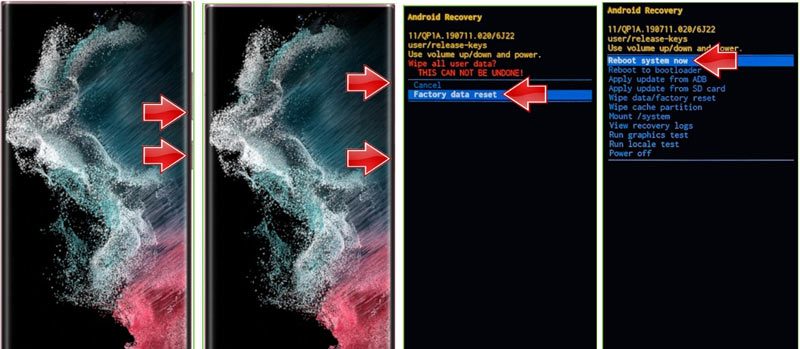
Tu teléfono arrancará como nuevo, sin la contraseña de pantalla anterior. Sin embargo, probablemente necesitarás las credenciales de tu cuenta de Google para el bloqueo FRP si no la eliminaste antes.
Si estás estancado en FRP, necesitarás un Desbloqueo de FRP del Samsung S22 herramienta como el modo de desbloqueo FRP de Aiseesoft u otra solución de software profesional.
¿Qué es el código de desbloqueo gratuito de Samsung?
No existe un código de desbloqueo universal y gratuito para teléfonos Samsung. Las compañías telefónicas a veces ofrecen códigos de desbloqueo, pero solo para dispositivos que cumplen los requisitos (pago total, no bloqueados, etc.).
¿Es posible evitar el bloqueo FRP en un dispositivo Samsung?
Sí, pero no mediante una configuración integrada sencilla. Necesitarás una herramienta para desbloquear el Samsung S22 Ultra con FRP o los datos de acceso de tu cuenta de Google. Un software profesional es la opción más fiable.
¿Cómo desbloquear el bloqueo de red del Samsung S22 Ultra?
Usted puede:
• Solicita un código de desbloqueo a tu operador
• Utilice un servicio de desbloqueo de operador profesional
• Utilice herramientas de desbloqueo basadas en software (utilice solo servicios confiables para evitar daños)
Conclusión
Quedarse sin acceso a tu Samsung S22 Ultra es estresante, pero no tiene por qué ser el fin del mundo. Ya sea por olvidar tu contraseña, por un bloqueo FRP o incluso por un bloqueo de red, existen varios métodos seguros y efectivos para ayudarte a recuperar el acceso.
Desde herramientas como Aiseesoft Android Unlocker hasta opciones integradas como Buscar mi dispositivo de Google y Buscar mi móvil de Samsung, tienes muchas soluciones fiables. Solo recuerda hacer copias de seguridad, activar Buscar mi móvil y guardar tus contraseñas en un lugar seguro.
Ojalá que esta guía te haya ayudado. desbloquear el Samsung S22 Ultra ¡Fácilmente y sin la espiral de pánico que experimenté la primera vez que me pasó!
 Olvidé la contraseña de Samsung: cómo acceder a los archivos de Android
¿Olvidó la contraseña de Samsung? ¿Cómo puede acceder y hacer una copia de seguridad de los archivos de Android desde el dispositivo Samsung bloqueado? Aquí puede encontrar Recuperación de datos rotos de Android para ayudarlo.
 Desbloquear Samsung: romper las restricciones de fábrica del teléfono Samsung
¿Qué es el gestor de arranque? ¿Cómo desbloquear el gestor de arranque en un teléfono Samsung Galaxy? Aprenda de este artículo sobre el desbloqueo del gestor de arranque de Samsung.
 Administrador de contraseñas de Samsung - Ver contraseñas guardadas en Samsung
¿Dónde se almacenan las contraseñas en mi teléfono Samsung? ¿Tiene Samsung un administrador de contraseñas? ¿Cómo acceder al administrador de contraseñas de Samsung? Obtén más información sobre Samsung Pass.
Compatible con todas las versiones del sistema operativo Android, este desbloqueador proporciona una manera fácil y segura de eliminar bloqueos de pantalla de cualquier tipo y evitar FRP rápidamente.
100% Seguro. Sin anuncios.
100% Seguro. Sin anuncios.

*Campo requerido
*Por favor ingrese un correo electrónico válido