Contenido
Durante el uso diario de tu iPhone, se acumulan varios tipos de archivos en el dispositivo iOS. Si el almacenamiento de tu iPhone se está agotando, deberías pensar en hacer una copia de seguridad de tu iPhone en iCloudiTunes o una PC/Mac. Una gran cantidad de fotos, videos, contactos y otros datos en tu iPhone son tan valiosos que ni siquiera puedes imaginar perderlos. Surge entonces la pregunta: Cómo hacer una copia de seguridad de un iPhone en un disco duro externoDe hecho, además de hacer una copia de seguridad de tu iPhone en iTunes, es recomendable hacerla directamente en un disco duro externo. Esta guía te mostrará paso a paso cómo hacerlo para que puedas guardar de forma segura tus fotos, vídeos, contactos y mucho más.
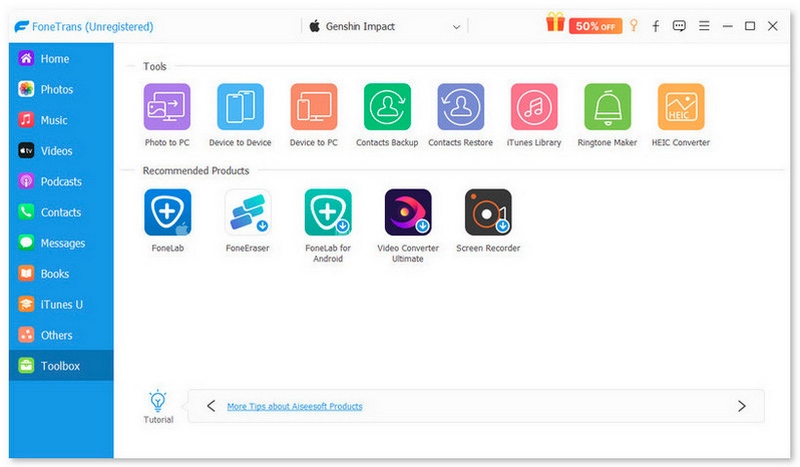
Si estás considerando cómo hacer una copia de seguridad de tu iPhone en un disco duro externo de forma sencilla y sin esfuerzo, Aiseesoft FoneTrans Podría ser una excelente opción. En comparación con iTunes o Finder, este software te permite seleccionar los elementos que deseas respaldar, como fotos, videos, contactos, mensajes y más, sin crear una copia de seguridad completa del dispositivo. Es ideal para quienes desean tener mayor control sobre sus archivos y prefieren guardar los datos del iPhone directamente en un disco externo sin pasos complicados. Si quieres acceder rápidamente a tus archivos respaldados en tu computadora o almacenamiento externo, esta es una buena opción.
117,006 Descarga
FoneTrans - Sincronizar mensajes de iPhone
 100% Seguro. Sin anuncios.
100% Seguro. Sin anuncios.
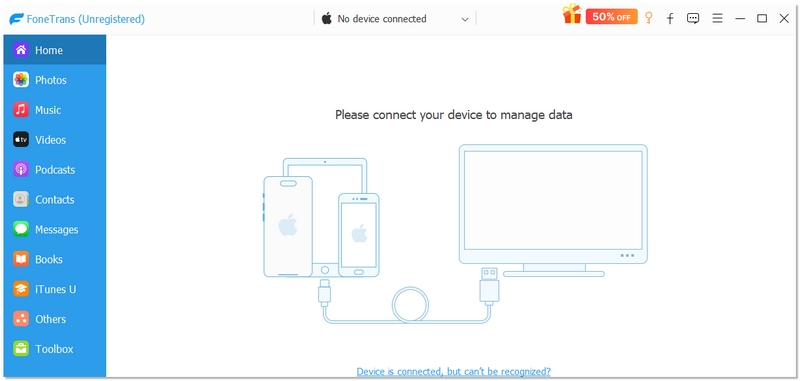
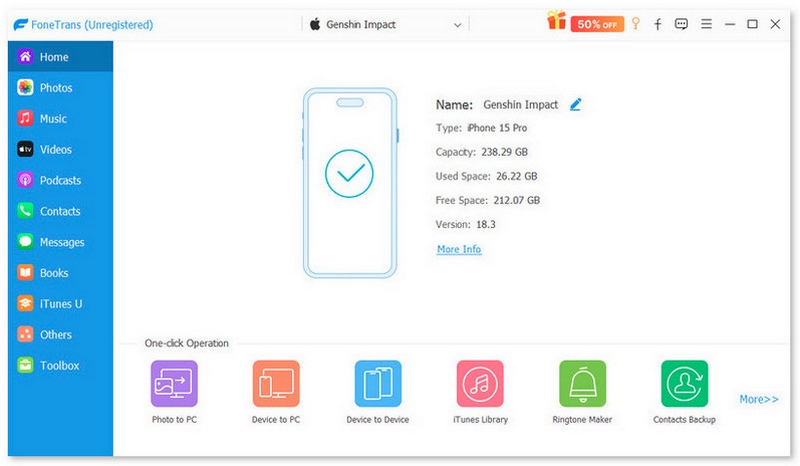
Además, si quieres hacer una copia de seguridad de todos los datos de tu iPhone en tu disco duro en un solo paso, puedes elegir Herramientas > A la carpeta > Comenzary selecciona tu disco duro externo como carpeta de destino. Esto te ayudará a realizar una copia de seguridad del teléfono en una carpeta externa.
Si buscas una forma gratuita y eficaz de hacer copias de seguridad de tu iPhone en un disco duro externo sin usar software de terceros, el método Symlink es una excelente solución. Esta técnica redirige la carpeta de copias de seguridad predeterminada de iTunes o Finder a tu disco duro externo. En lugar de guardar las copias de seguridad en el almacenamiento interno de tu ordenador, el sistema las guardará automáticamente en el disco externo. Aunque este método requiere algunos pasos técnicos, es gratuito y funciona bien tanto en Windows como en macOS.
En Windows:
Vaya a:
C:\Usuarios\[Tu nombre de usuario]\AppData\Roaming\Apple Computer\MobileSync\Backup
En Mac:
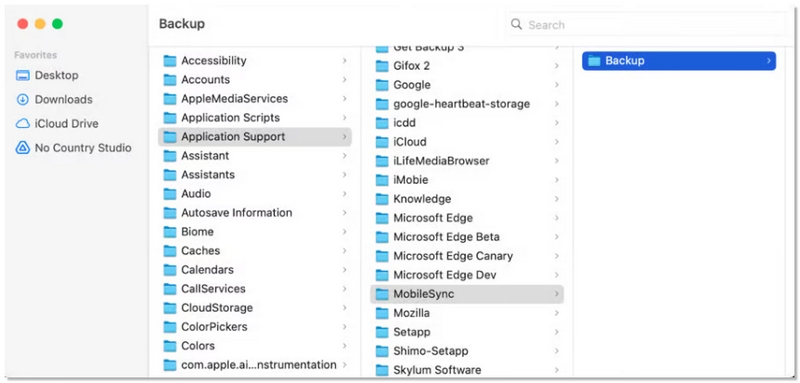
Abierto Finder > Haga clic en Go en el menú > Mantener presionado Opción > Haga clic en Biblioteca >
Vaya a:
Soporte de aplicaciones/Sincronización móvil/Copia de seguridad
En Windows:
Abierto Símbolo del sistema como administrador
Escriba el siguiente comando:
mklink /J "C:\Users\[TuNombreDeUsuario]\AppData\Roaming\Apple Computer\MobileSync\Backup" "E:\Backup"
(Reemplace E:\Backup con la ruta real de su disco externo).
En Mac:
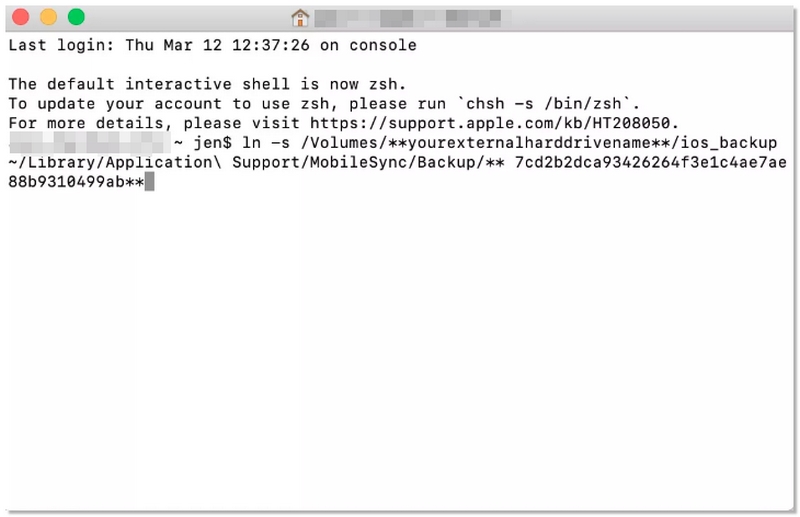
Terminal abierta.
Ingrese el comando:
ln -s /Volumes/ExternalDrive/Backup ~/Library/Application\ Support/MobileSync/Backup
(Reemplace “ExternalDrive” con el nombre de su unidad.)
Importante
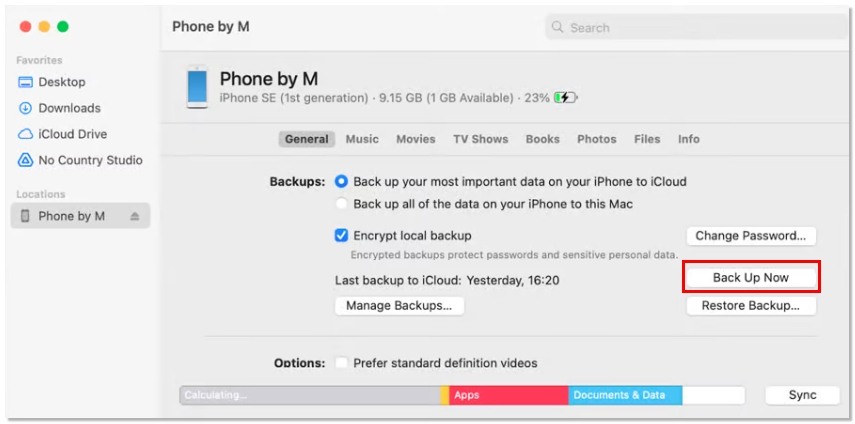
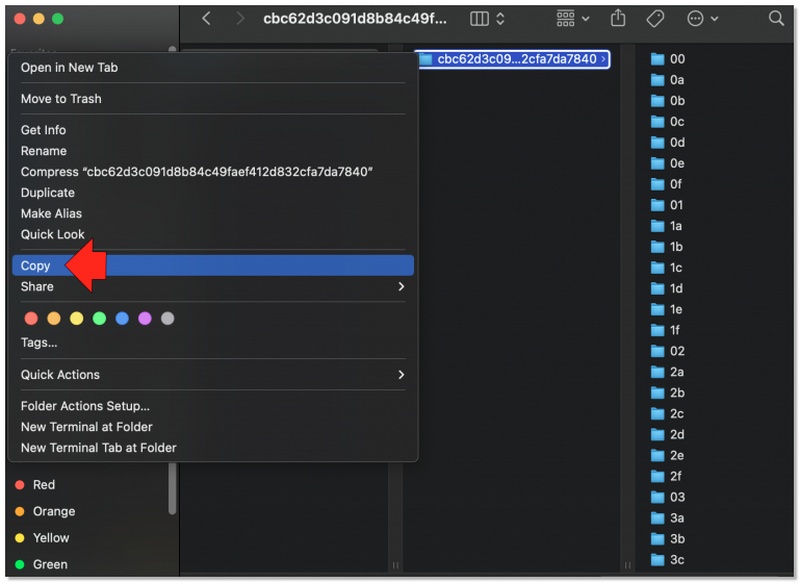
Si eres fan de las herramientas oficiales de Apple, Mac Finder o iTunes funcionan muy bien para hacer una copia de seguridad completa de tu iPhone. Generalmente, las copias de seguridad se guardan localmente, pero después puedes mover manualmente la carpeta de copia de seguridad a tu disco duro externo. Este método es perfecto para quienes desean una copia de seguridad totalmente segura de su dispositivo sin instalar ningún software de terceros, pero manteniendo sus datos en un disco externo.
Si utilizas un modelo más reciente como el iPhone 15, 16 o 17, tienes una gran ventaja. La conectividad USB-C hace que el proceso de copia de seguridad sea más rápido y flexible en comparación con los modelos Lightning más antiguos. Con el cable o concentrador USB-C adecuado, puedes conectar tu iPhone y disco duro externo directamente a tu ordenador para crear una copia de seguridad local de forma más eficiente. Si buscas una forma más rápida de respaldar un iPhone Para conectar un disco duro externo, esta moderna configuración USB-C es una de las opciones más convenientes disponibles en la actualidad.
¿Puedo hacer una copia de seguridad de mi iPhone sin usar un ordenador, utilizando un disco duro externo?
No, iOS no admite oficialmente la creación de una copia de seguridad completa del sistema directamente en un disco duro externo sin un ordenador. Se requiere un Mac o un PC con Windows para generar el archivo de copia de seguridad antes de guardarlo en el almacenamiento externo.
¿Puedo usar cualquier formato de disco duro externo?
No todos los formatos funcionan correctamente. Para una mejor compatibilidad: en Mac: APFS o Mac OS Extended (con registro), en Windows: NTFS, para uso multiplataforma: exFAT.
¿Qué ocurre si se desconecta el disco duro externo durante la copia de seguridad?
El proceso de copia de seguridad fallará. Deberá volver a conectar la unidad y reiniciar la copia de seguridad. Evite desconectar los cables mientras se esté transfiriendo datos.
Conclusión
Hacer una copia de seguridad de tu iPhone en un disco duro externo es una de las formas más seguras de mantener tus fotos, vídeos, contactos y demás datos a salvo, a la vez que te proporciona más espacio de almacenamiento. Este artículo explica varias formas de hacer copias de seguridad, como a través de Finder/iTunes, enlaces simbólicos, Aiseesoft Fonetrans y copia de seguridad directa mediante USB-C, para que puedas elegir el método que mejor se adapte a tu modelo de iPhone y a tus preferencias. Explica claramente el proceso. Cómo hacer una copia de seguridad de un iPhone directamente en un disco duro externo., lo que hace que el proceso sea sencillo, seguro y fiable.
 Extractor de copia de seguridad de iPhone: extraiga la copia de seguridad de iPhone de iTunes/iCloud
¿Necesita un extractor de copia de seguridad de iPhone para ver y extraer contactos, fotos y mensajes de texto de iPhone de iTunes o iCloud? Encuentre el mejor extractor de copia de seguridad de iPhone aquí.
 Cómo hacer una copia de seguridad de mi iPhone en mi Mac con o sin iTunes
Este artículo le muestra cómo hacer una copia de seguridad de los archivos de su iPhone en Macbook con o sin iTunes. Además, puedes saber cómo ver la copia de seguridad del iPhone en Mac.
 Backup Assistant - Cómo hacer una copia de seguridad de Android con Backup Assistant
¿Qué es el Asistente de copia de seguridad? ¿Cómo usar Verizon Backup Assistant para copiar tus contactos de Android? Conoce más información en este post.
Copia de seguridad de iPhone
1.1 Cómo hacer una copia de seguridad del iPhone1.2 Cómo hacer una copia de seguridad del iPhone en iCloud1.3 Cómo hacer una copia de seguridad del iPhone en iTunes1.4 Cómo hacer una copia de seguridad del iPhone en el ordenador1.5 Cómo hacer una copia de seguridad del iPhone en Mac1.6 Copia de seguridad del iPhone en un disco duro externo1.7 Extractor de copias de seguridad de iPhone1.8 Ubicación de la copia de seguridad del iPhone1.9 Contraseña de copia de seguridad del iPhone1.10 El iPhone no realiza copias de seguridad
Transfiera datos desde iPhone/iPad/iPod a su computadora o al revés.
100% Seguro. Sin anuncios.
100% Seguro. Sin anuncios.

*Campo requerido
*Por favor ingrese un correo electrónico válido