Contenido
Resumen rápido: Cómo elegir el método de transferencia adecuado
Como usuario de Android, si va a cambiar su teléfono Android por un iPhone, lo más importante que debe considerar son los contactos de su antiguo teléfono Android. Constantemente, la gente busca la mejor solución para transferir datos de Android a iPhone, y existen muchas maneras de lograrlo, como transferirlos a través de iCloud. Sin embargo, considerando la comodidad y la seguridad, muchos prefieren buscar una aplicación alternativa o métodos sencillos.
Es más, ahora copiar o Transferir tus contactos de Android a un nuevo iPhone Puede ser mucho más fácil que antes. Después de leer este artículo, aprenderá cinco métodos sencillos para resolver sus problemas.
Comparación rápida: Métodos de transferencia de datos de un vistazo
| Métodos | Dificultad | Requisito | Limitación |
| Mover a iOS | ¡Fácil | iPhone nuevo/iPhone restaurado de fábrica | Pérdida de datos del iPhone |
| Cuenta Google | ¡Fácil | Contactos sincronizados con Google | El contacto local no se puede transferir |
| Aiseesoft FoneEase | ¡Fácil | Un ordenador | Es necesario que ambos dispositivos estén conectados. |
| Tarjeta SIM | Media | iPhone con tamaño de SIM compatible | Contacto por menos de 250, sin información detallada |
| Importación de iCloud | Difícil | Cuenta iCloud | Transferencia e importación manual de archivos |
Ideal para: Transferencia rápida de contactos de Android a un iPhone nuevo o a un iPhone restaurado de fábrica.
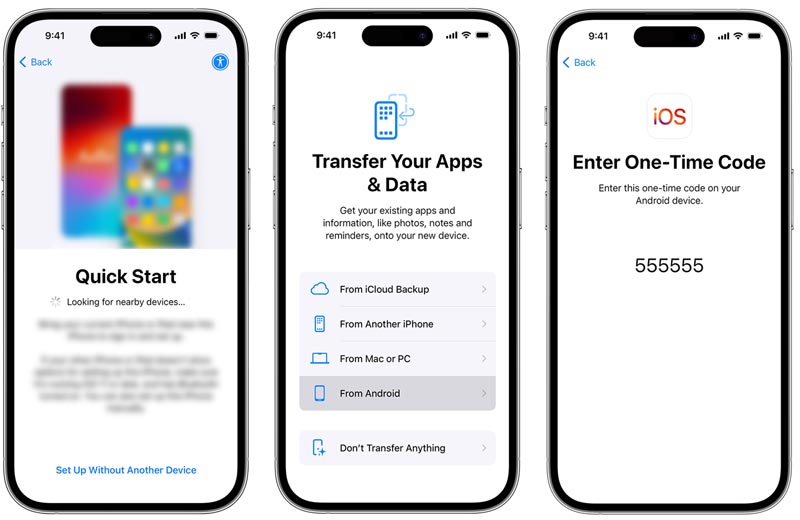
La Mover a iOS La aplicación está diseñada específicamente para automatizar la transferencia de datos durante la configuración inicial de un nuevo iPhone. Si desea copiar todo tipo de archivos importantes de un teléfono Android antiguo a un dispositivo iOS nuevo, este es el método recomendado oficialmente por Apple.
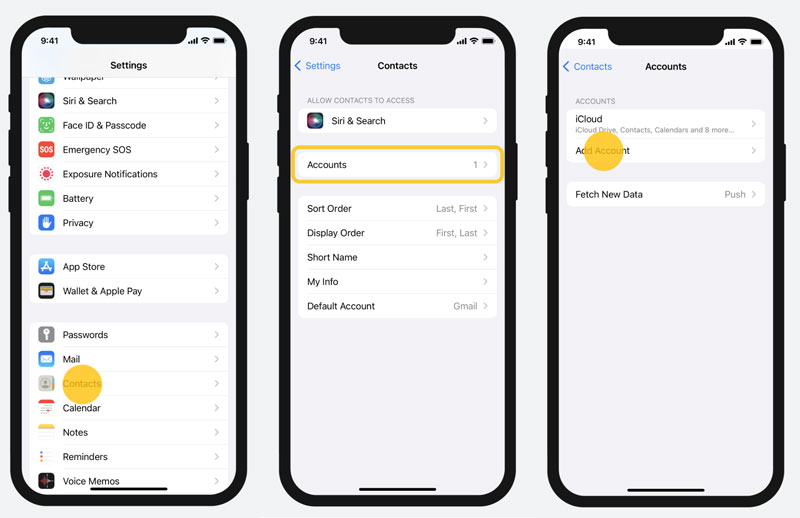
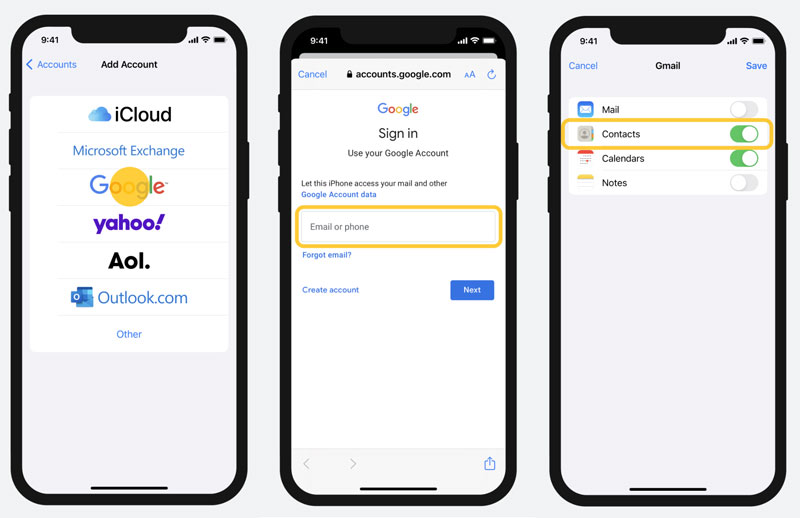
Ideal para: La transferencia será más rápida si tus contactos ya están vinculados a una cuenta de Gmail.
Si tienes una cuenta de Google y quieres copiar tus contactos de Android a iPhone de esta forma, asegúrate de que estén guardados en Google, no solo en el almacenamiento local del teléfono. Una vez confirmado, el siguiente paso será muy sencillo.
Ideal para: Previsualización y transferencia selectiva de contactos entre Android y iPhone.
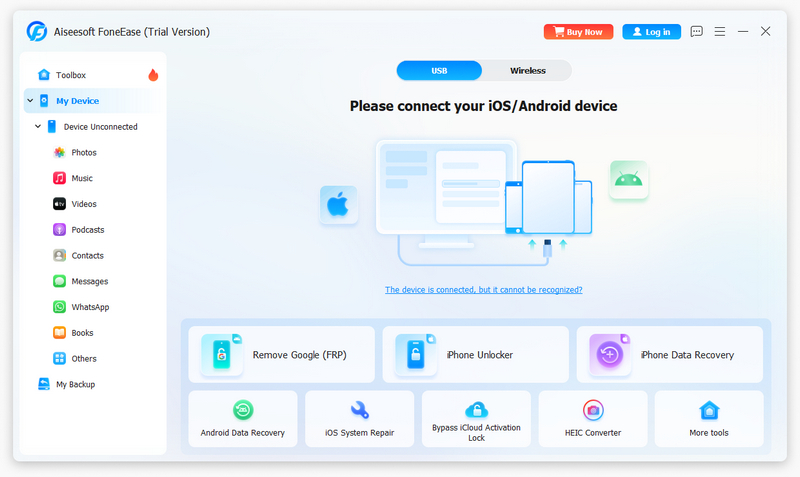
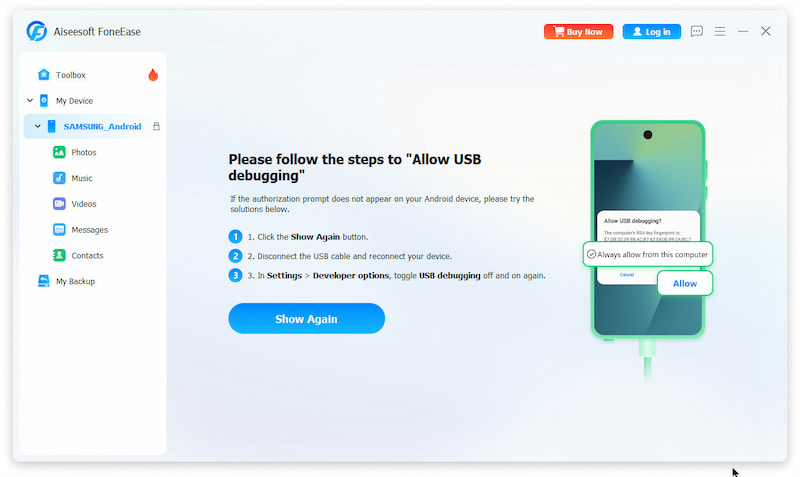
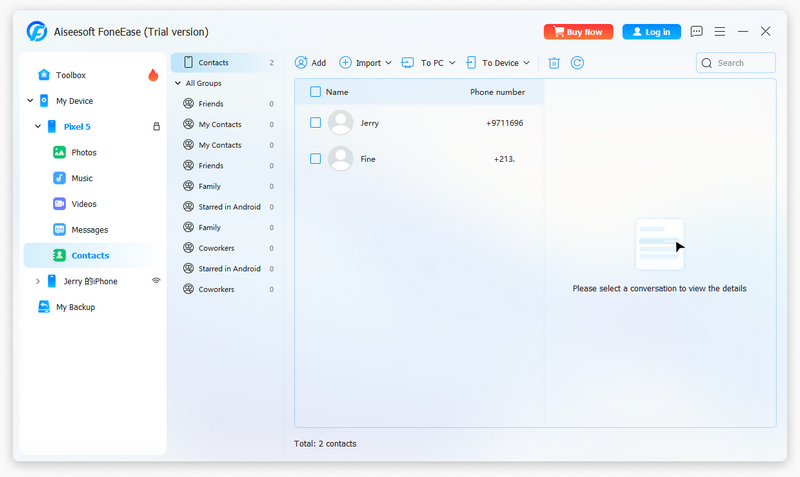
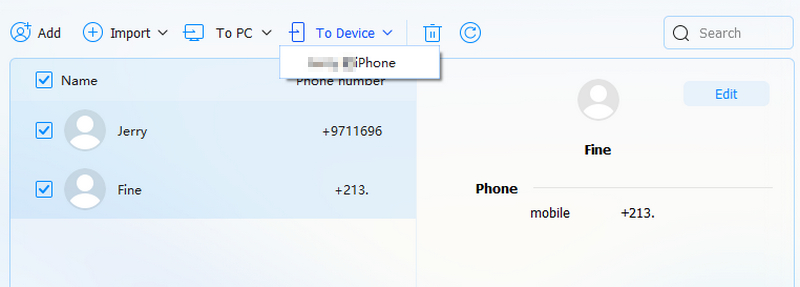
Si buscas una solución sencilla para transferir contactos de tu teléfono Android a tu iPhone, Aiseesoft FoneEase FoneEase es un software profesional de transferencia y gestión de datos móviles que te permite mover diversos archivos como contactos, fotos, canciones, vídeos, etc., entre dispositivos Android e iPhone. Además, facilita la transferencia de cualquier archivo entre dispositivos iOS y Android, de iOS a Android, del teléfono al ordenador o viceversa. FoneEase también te ayuda a gestionar los datos de tu dispositivo, clasificándolos, eliminándolos, fusionándolos y previsualizándolos directamente en él. Asimismo, te permite convertir fotos HEIC y personalizar tonos de llamada. ¡Descubre muchas más funciones!
 100% Seguro. Sin anuncios.
Ideal para: Transferencia sencilla de contactos a iPhone mediante tarjeta SIM.
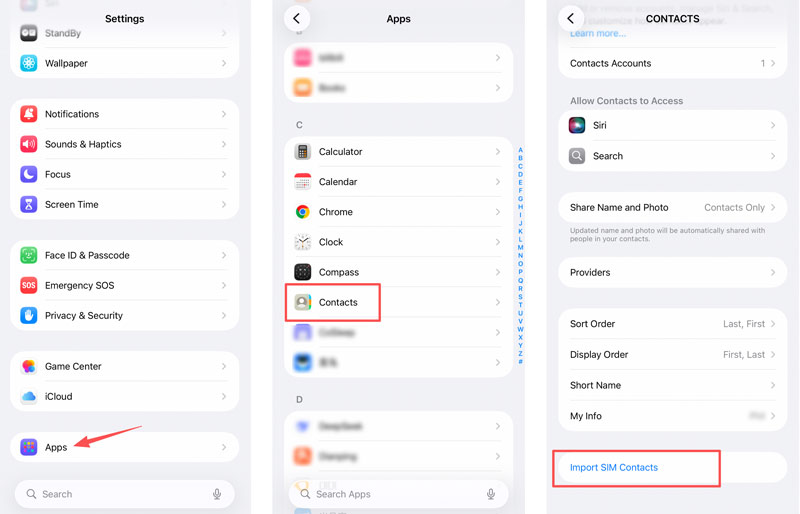
Para transferir tus contactos de un teléfono Android a un iPhone, también puedes usar la tarjeta SIM. Si el nuevo iPhone la acepta, este método de transferencia puede ser sencillo.
Teniendo en cuenta que las tarjetas SIM a menudo tienen una capacidad de almacenamiento limitada, no pueden guardar muchos contactos, especialmente cuando estos contactos contienen información detallada, como fotos de perfil.
Localice la opción Importar contactos SIM Opción y selecciónala. Estos contactos de Android se guardarán directamente en el almacenamiento de tu iPhone.
Ideal para: Migración completa y única de los contactos al ecosistema de Apple.
Si desea mover contactos de Android a iPhone a través de iCloud, siga los pasos a continuación.
Toque en el Contacto en tu dispositivo Android y saldrá la parte inferior Exportación / Importación después de tocar el Menú de tu teléfono. Luego, puedes elegir Exportar a tarjeta SD, y el archivo vCard (VCF) se almacenará en su tarjeta SD.
Conecte su teléfono Android a su computadora mediante un cable USB, o conecte su tarjeta SD a su computadora y podrá copiar el archivo VCF a su computadora.
Accede a tu cuenta de iCloud desde cualquier navegador con conexión a internet. Si no tienes una cuenta de iCloud, regístrate primero. Después, podrás iniciar sesión con tu nombre de usuario y contraseña.
Después de ingresar a iCloud, haga clic en el icono grande Contacto icono y podrás ver un pequeño engranaje icono en la parte inferior. Haz clic en él y selecciona el Importar vCardEntonces, elige el 0001.vcf que acabas de exportar a tu iCloud.
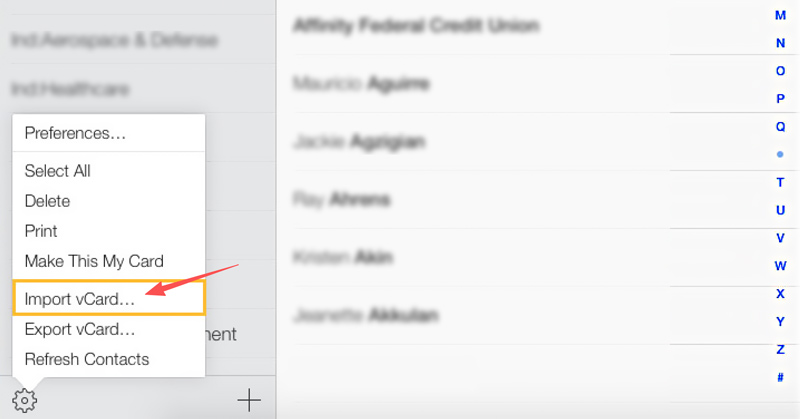
Debe tener en cuenta que los límites de importación de vCard son: Número total de vCards: 50 000, Tamaño máximo de una vCard: 256 KB (foto + texto), Tamaño máximo de foto para una vCard: 224 KB.
Después de transferir los contactos a iCloud, restáuralos de iCloud a iPhone. Este método para transferir contactos de Android a iPhone es un poco lento, pero es gratuito.
¿Podemos transferir datos de Android a iPhone después de la configuración?
Sí, pero si ya terminaste la configuración, debes borrar tu dispositivo iOS y comenzar de nuevo. Si no quieres borrar, simplemente transfiere tu contenido manualmente.
¿Qué no se puede transferir de Android a iPhone?
Los iPhone y Android no son compatibles con las tiendas de aplicaciones de cada uno. Por lo tanto, si cambias a un iPhone, no se transferirán las aplicaciones de Android que tengas. Afortunadamente, muchas aplicaciones de Android tienen equivalentes o versiones para iPhone que básicamente realizan las mismas funciones.
¿Cuánto tiempo se tarda en transferir datos de Android a iPhone?
Depende del tipo de archivo que intentes mover de Android a iOS y del volumen de datos. En promedio, compartir 2 GB de datos podría demorar entre 5 y 10 minutos. Sin embargo, mover 2 GB de datos de WhatsApp Puede tardar hasta 30 minutos todo el traslado.
Conclusión
Cambiar de Android a iPhone 17 no significa dejar atrás tu vida digital. Dependiendo de tus necesidades específicas, aquí te mostramos cómo elegir la mejor manera de transferir datos de Android a iPhoneSi tu dispositivo es nuevo, la aplicación "Move to iOS" de Apple ofrece una forma inalámbrica decente de copiar archivos por Wi-Fi durante la configuración inicial. Si solo necesitas sincronizar archivos básicos como contactos o calendarios sin usar una computadora, la migración a la nube a través de Google Drive es una opción flexible. Sin embargo, si buscas una migración rápida, confiable y definitiva que te brinde control total sobre los archivos individuales, sin restablecer de fábrica un teléfono ya activado, Aiseesoft FoneEase es la herramienta definitiva para transferir datos de Android a iPhone. Evita por completo la pérdida de datos inalámbrica, maneja de forma segura todos los tipos de archivos principales mediante una conexión USB segura y deja tu nuevo iPhone 17 listo para usar en un instante.
100% Seguro. Sin anuncios.
 Cómo transferir videos de iPhone a iPad de forma rápida y segura [Guía]
Este artículo presenta tres formas de transferir videos de iPhone y otros archivos a un iPad cercano. Por favor, léalo detenidamente y elija el adecuado.
 ¿Cómo transfieres música de iPhone a iPhone?
Este artículo le muestra tres formas de transferir música de iPhone a iPhone usando iTunes, AirDrop y la aplicación (sin iTunes/iCloud).
 La mejor transferencia de SMS de iPhone para sincronizar mensajes con el teléfono o la computadora
Transferencia de SMS de iPhone: transfiera mensajes de texto de iPhone a iPhone nuevo, copie de Android a iPhone, haga una copia de seguridad de iPhone a la computadora y sincronice iPhone a Mac.
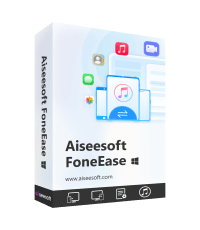
Aiseesoft FoneEase es una herramienta de transferencia y gestión de datos que te permite mover, hacer copias de seguridad y gestionar sin problemas diversos datos entre dispositivos iOS, Android y ordenadores, sin necesidad de reiniciar el teléfono ni depender de iTunes.
100% Seguro. Sin anuncios.

*Campo requerido
*Por favor ingrese un correo electrónico válido