Los requisitos previos para transferir WhatsApp desde un dispositivo Android a un iPhone son un iPhone nuevo que no haya sido activado o uno que haya sido restablecido de fábrica. Pero como todos sabemos, un restablecimiento de fábrica borrará toda la información de su teléfono Android. Es desalentador, ¿no? Entonces, ¿hay alguna forma de ayudarte? transferir WhatsApp de Android a iPhone sin restablecer los valores de fábrica? Puede obtener respuestas en este artículo.

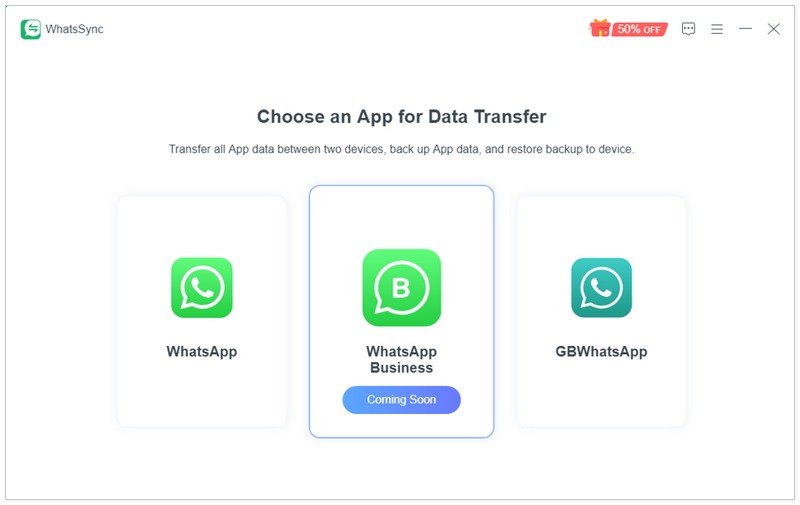
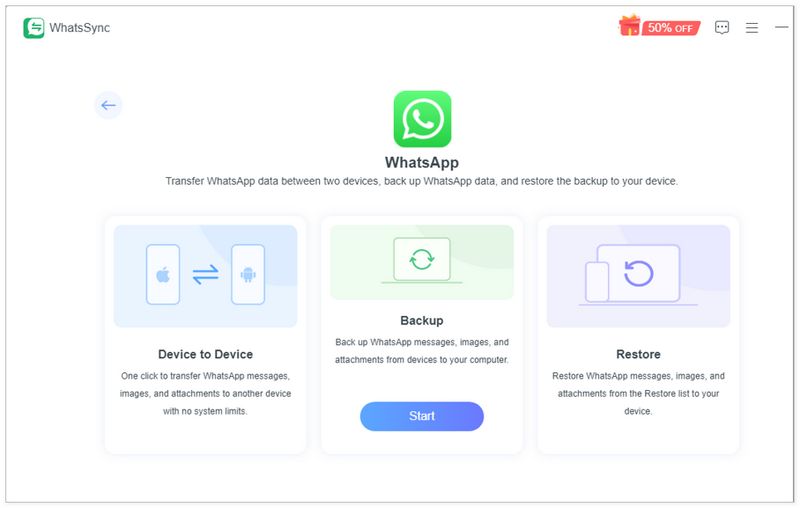
Whatssync Es un potente programa de terceros que te ayuda a transferir todos los datos de chat de WhatsApp entre dispositivos Android e iOS. Esta herramienta dedicada a la transferencia de datos de WhatsApp te permite mover o copiar conversaciones, chats, documentos y diversos archivos adjuntos de WhatsApp de un teléfono Android a un iPhone y de un iPhone a un dispositivo Android fácilmente.
Descarga
 100% Seguro. Sin anuncios.
A continuación se muestran los pasos detallados sobre cómo transferir WhatsApp de Android a iPhone sin un restablecimiento de fábrica usando WhatsSync.
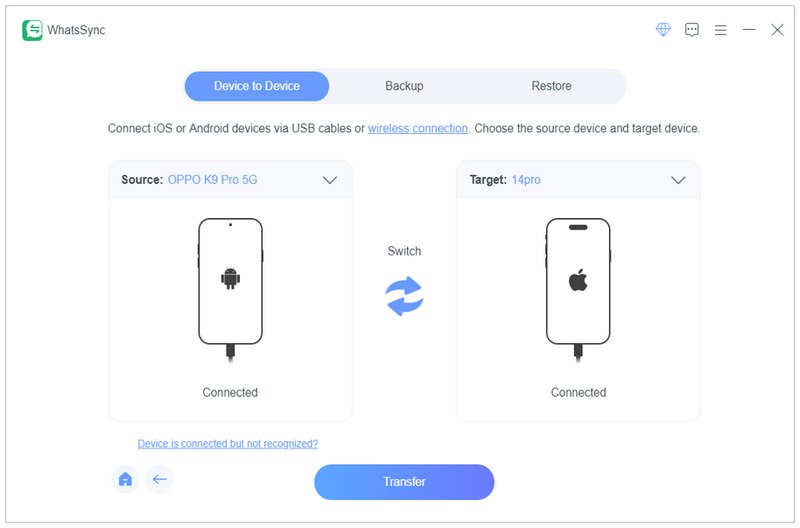
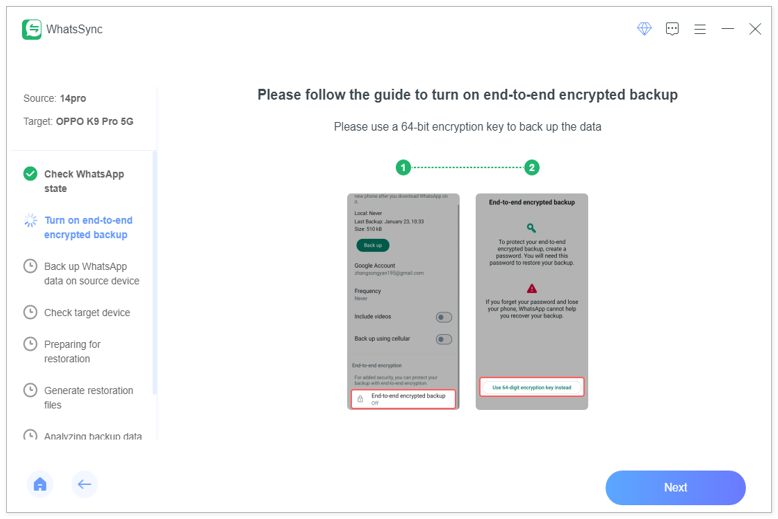
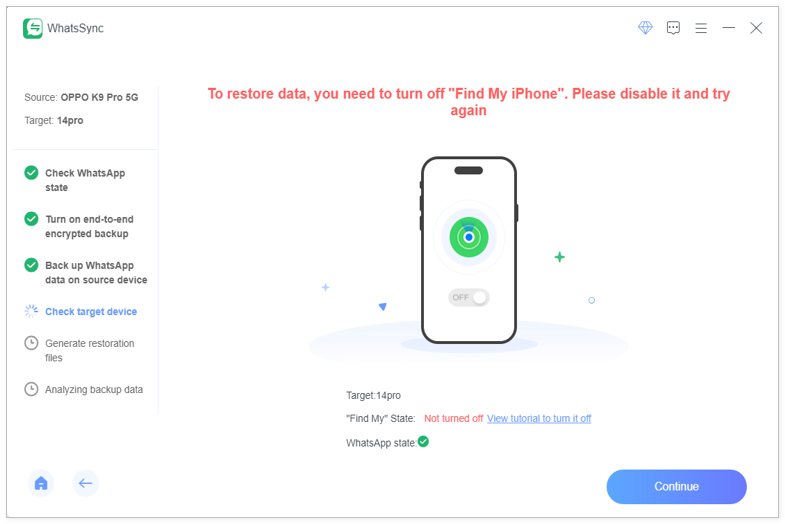
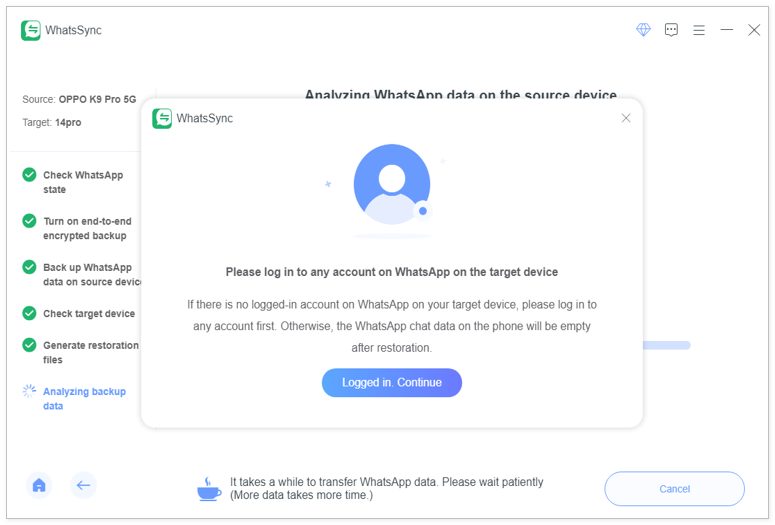
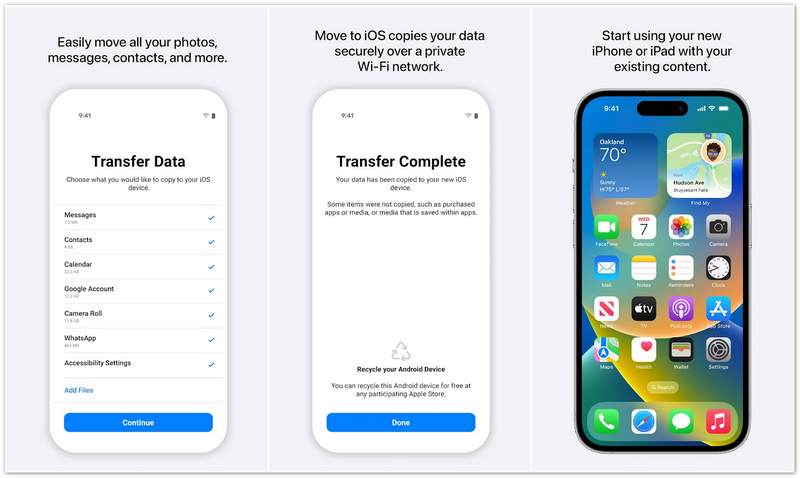
Además de usar WhatsSync para transferir WhatsApp a un nuevo iPhone, también puedes usar el Mover a iOS Aplicación. Puedes acceder a ella y descargarla desde Google Play. Esta aplicación transferirá tus datos, pero no los verá ni compartirá, para que puedas usarla con seguridad.
Entonces, ¿cómo se migra WhatsApp de Android a iPhone? Consulte los pasos a continuación.
Ventajas
Contras
Además de los dos métodos anteriores, puedes aprovechar Google Drive Para transferir chats y mensajes de WhatsApp de Android a iOS sin restablecer la configuración de fábrica, simplemente haz una copia de seguridad de WhatsApp desde tu teléfono Android con Google Drive y luego restaura los datos en tu iPhone usándolo de nuevo.
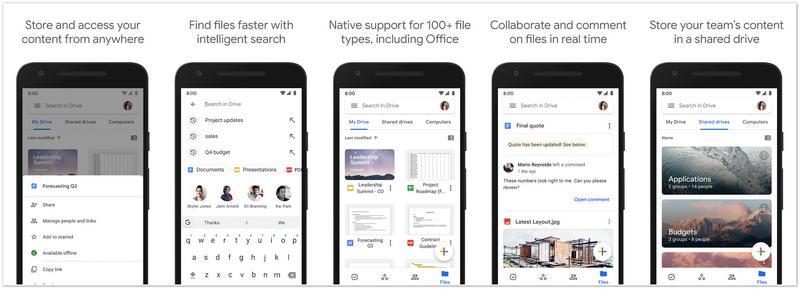
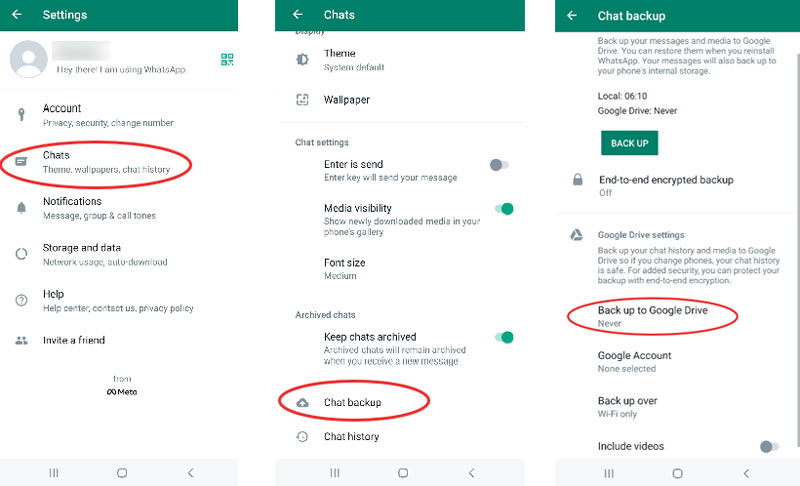
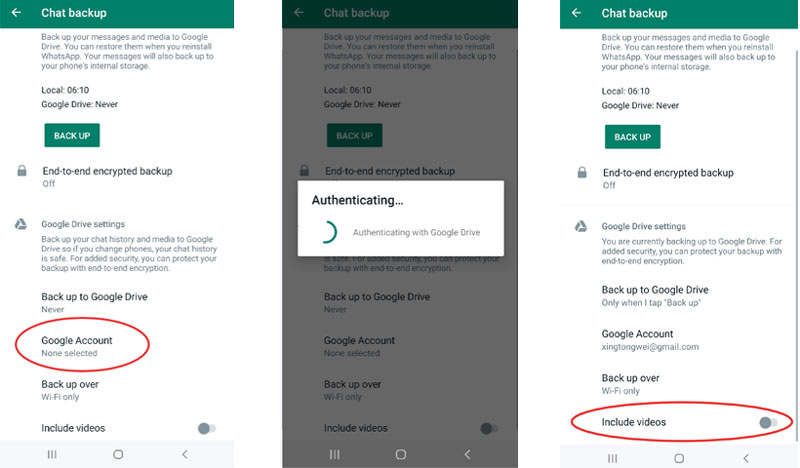
Siga los pasos a continuación y use Google Drive para transferir WhatsApp de Android a iPhone.
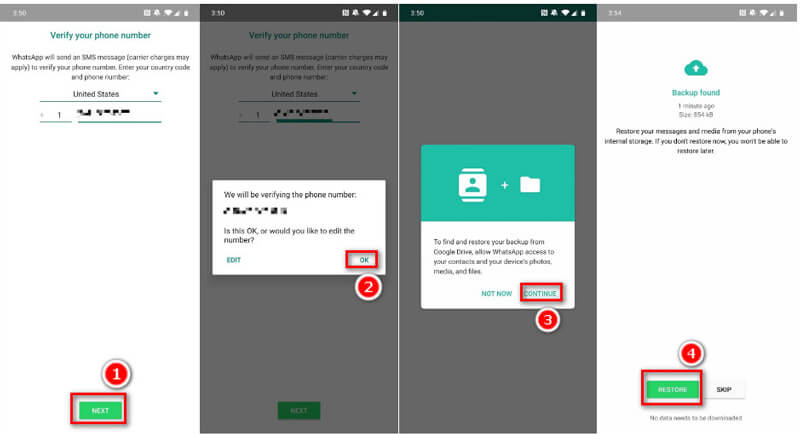
Ventajas
Contras
WhatsApp incluye una función de "Chat por correo electrónico" que te permite transferir rápidamente tus conversaciones, fotos, documentos y vídeos. Si solo necesitas copiar algunas conversaciones de texto importantes de tu teléfono Android a un iPhone, usa este método.
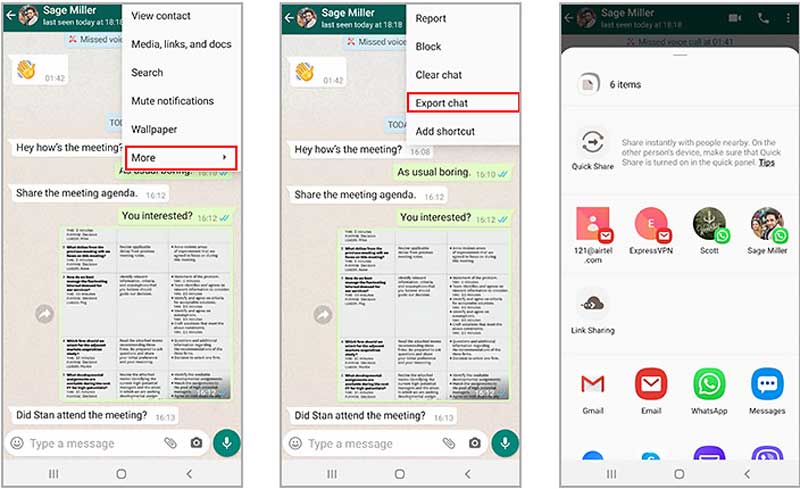
Ventajas
Contras
¿Cómo restauro los chats de WhatsApp desde la copia de seguridad de Google Drive en un iPhone?
Abra WhatsApp y busque Configuración en su dispositivo anterior. Seleccione Chats y elija Copia de seguridad de chat. Puede optar por realizar una copia de seguridad en Google Drive e ingresar a su cuenta de Google. Después de la copia de seguridad, puedes abrir WhatsApp en tu iPhone e ingresar el mismo número de teléfono que usaste en tu dispositivo anterior. Siga las instrucciones para restaurar los datos de los que realizó una copia de seguridad.
¿Por qué no funciona mi transferencia de WhatsApp?
Puede deberse a que sus dispositivos Android y iPhone están conectados a redes Wi-Fi diferentes. Además, activar la ubicación en vivo también podría provocar una transferencia fallida.
¿El restablecimiento de fábrica eliminará los mensajes de WhatsApp?
Sí, lo será. El restablecimiento de fábrica no solo borra todos sus mensajes anteriores en WhatsApp sino que también elimina mensajes en otras aplicaciones en sus dispositivos Android o iPhone.
Conclusión
El método oficial para transferir datos de WhatsApp requiere que restablezcas los valores de fábrica de tu teléfono objetivo, lo que puede provocar la pérdida de datos de otras aplicaciones. Pero utilizando las formas que recomendamos anteriormente, puedes transferir WhatsApp de Android a iPhone sin restablecer los valores de fábricaLa herramienta más efectiva es utilizar WhatsSync, pero si tu computadora no está disponible, también puedes probar los otros tres métodos.
 Aprenda a hacer una copia de seguridad de los mensajes de WhatsApp en iPhone y Android
¿Cómo se hacen copias de seguridad de chats antiguos en WhatsApp? ¿Puedo hacer una copia de seguridad de todos los mensajes de WhatsApp? Consulte la guía sencilla para hacer una copia de seguridad de sus chats de WhatsApp en una computadora y en un disco.
 WhatsApp iCloud Backup - Cómo hacer una copia de seguridad de WhatsApp en iCloud
¿Por qué no puedo hacer una copia de seguridad de mi WhatsApp en iCloud? ¿Cómo accedo a WhatsApp en iCloud? ¿Cómo hacer una copia de seguridad de WhatsApp en iCloud? Esta publicación comparte 3 formas simples de crear una copia de seguridad de WhatsApp iCloud.
 Recuperación de datos de WhatsApp en línea gratuita en iPhone y Android
¿Cómo puedo recuperar chats eliminados de WhatsApp? ¿Cómo se recuperan los mensajes eliminados de WhatsApp? Averigua si puedes recuperar datos de WhatsApp online gratis.
Recuperar WhatsApp
1.1 Recuperación de WhatsApp1.2 Recuperar mensajes de WhatsApp eliminados1.3 Recuperar chat de WhatsApp eliminado1.4 Recuperar mensajes de WhatsApp Android1.5 Recuperar el historial de chat de WhatsApp Samsung1.6 Recuperar videos/imágenes de WhatsApp Android1.7 Restaurar mensajes de WhatsApp en un nuevo iPhone1.8 Restaurar WhatsApp desde Google Drive a iPhone1.9 Copia de seguridad y restauración de WhatsApp1.10 Restaurar WhatsApp desde iCloudUna herramienta eficiente de transferencia de WhatsApp que realiza copias de seguridad y sincroniza rápidamente todos los chats, videos/audios, archivos, stickers y más de WhatsApp en dispositivos iOS/Android y servicios en la nube en línea.
100% Seguro. Sin anuncios.

*Campo requerido
*Por favor ingrese un correo electrónico válido