Aiseesoft Video Converter Ultimate
 100% Seguro. Sin anuncios.
100% Seguro. Sin anuncios.
If you are holding a video file and wish to discard the singing or spoken audio from it without first converting it to a separate track, then this is exactly what you are looking for. Here, with us, we’ll demonstrate to you how to remove vocals from MP4 videos effectively with the help of both desktop and online tools. We will guide you through the best choices at each step for you to get rid of the vocals while preserving your video, both in case you need high-quality results, batch processing, or just a quick online solution.
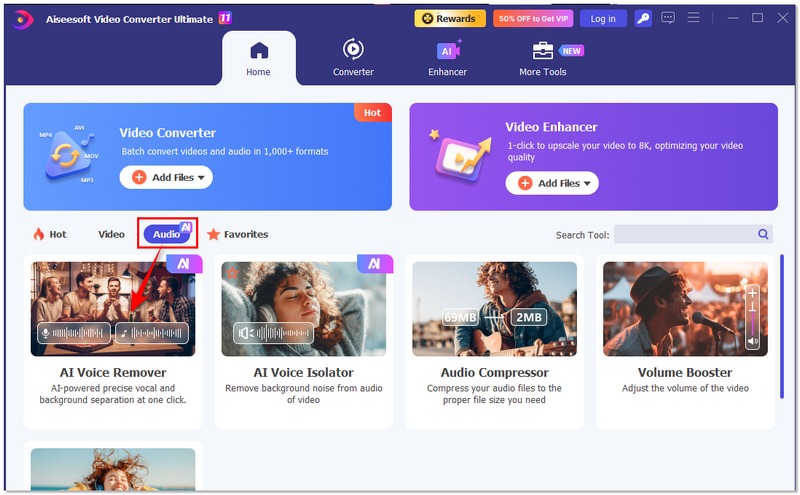
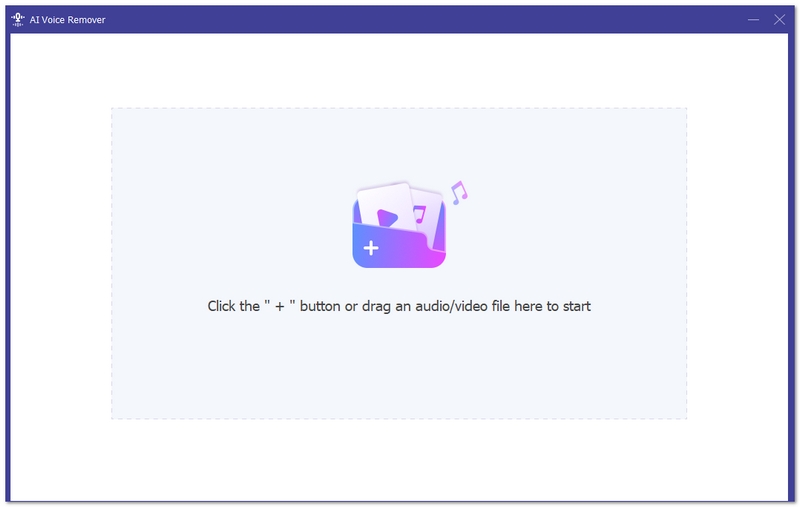
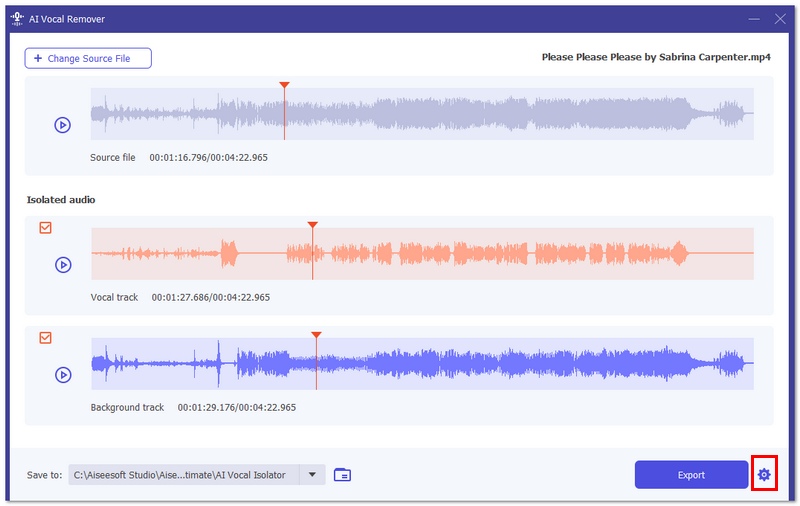
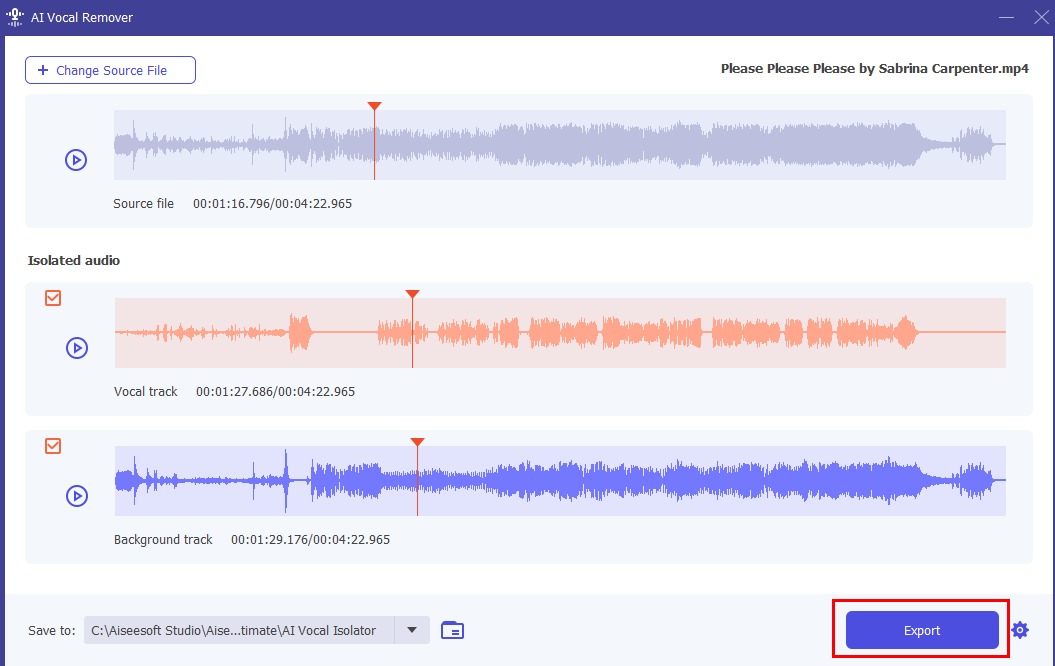
When it comes to choosing the most efficient mp4 vocal remover, Aiseesoft Video Converter Ultimate stands out as the best desktop solution. It features a built-in AI Vocal Remover that lets users remove vocals directly from MP4 videos without manually extracting the audio. Unlike traditional audio editors, this tool supports a wide range of video formats, including MP4, MOV, MKV, AVI, and more. It also provides a real-time video preview, ensuring you can monitor changes before exporting.
Descarga
100% Secure. No Ads.
100% Secure. No Ads.
Steps to Remove Vocals from MP4 Using Aiseesoft VCU
Ideal para
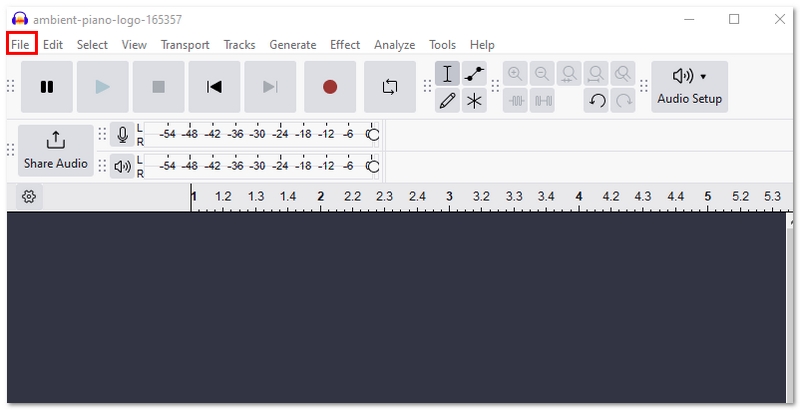
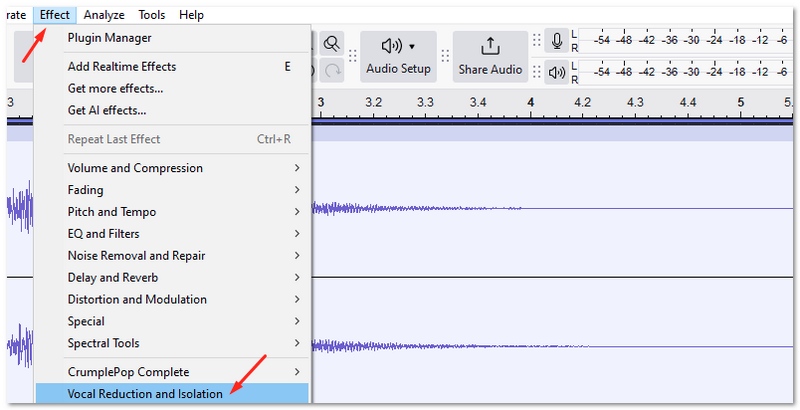
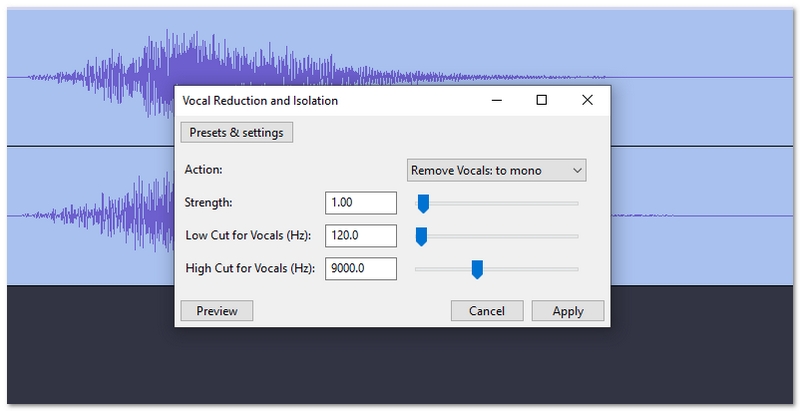
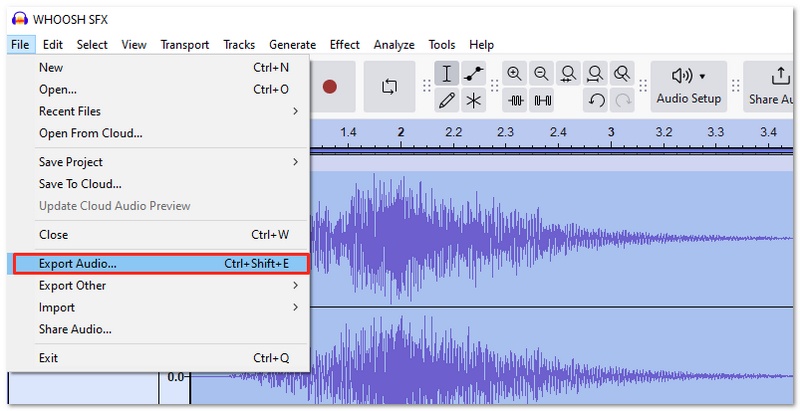
Audacity is a well-known, free audio editing software available for Windows, Mac, and Linux. While it does not directly edit video files, it can still help users who want to learn how to remove vocals from MP4 video by extracting the audio track first and applying vocal reduction tools.
Although Audacity requires more steps than AI-based MP4 vocal removers, it remains a powerful free option for users who are comfortable working with audio files separately.
Ideal para
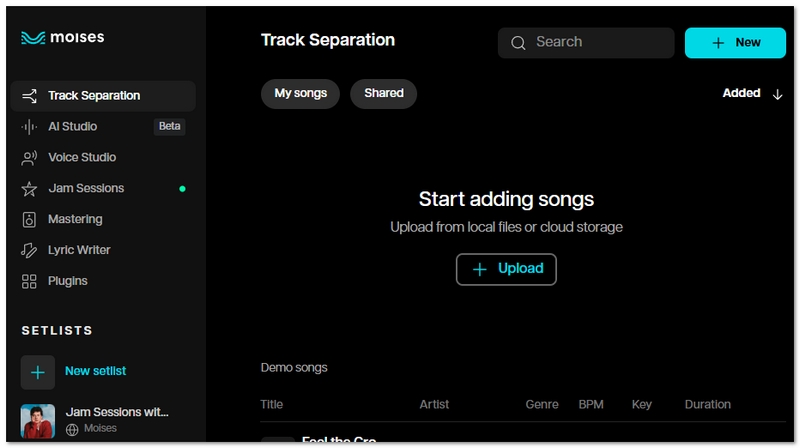
Moises Web is an AI-powered audio separation platform that works directly in your browser. If you’re looking for an MP4 vocal remover online, Moises offers a convenient way to separate vocals and instrumentals without installing desktop software.
Moises is ideal for users who want a fast, accessible web-based solution, especially for smaller projects or testing vocal removal without installing software.
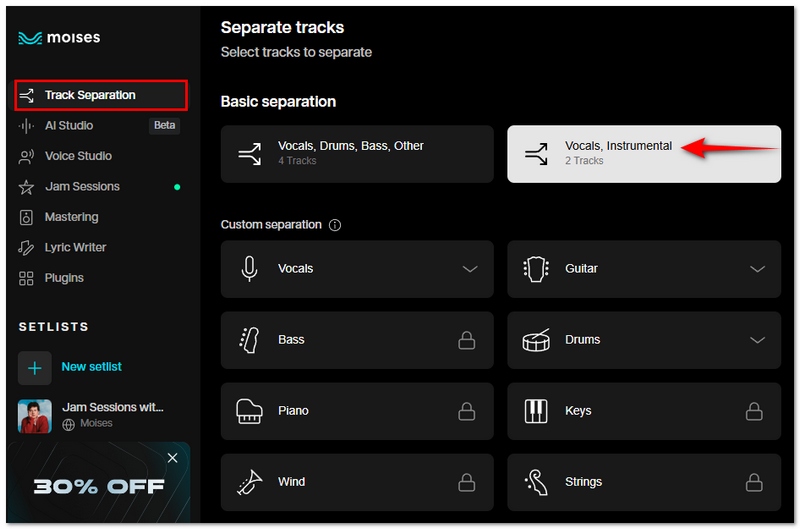
Ideal para
A popular professional-grade video editing program for YouTube, movies, and commercial production is Adobe Premiere Pro. While it is not a one-click AI removedor vocal, it offers powerful audio editing features that can function as a karaoke MP4 vocal remover when using effects like Center Channel Extractor and Essential Sound tools.
Because Premiere Pro works directly with video files, you can remove or reduce vocals while keeping your video timeline intact. There’s no need to extract audio separately.
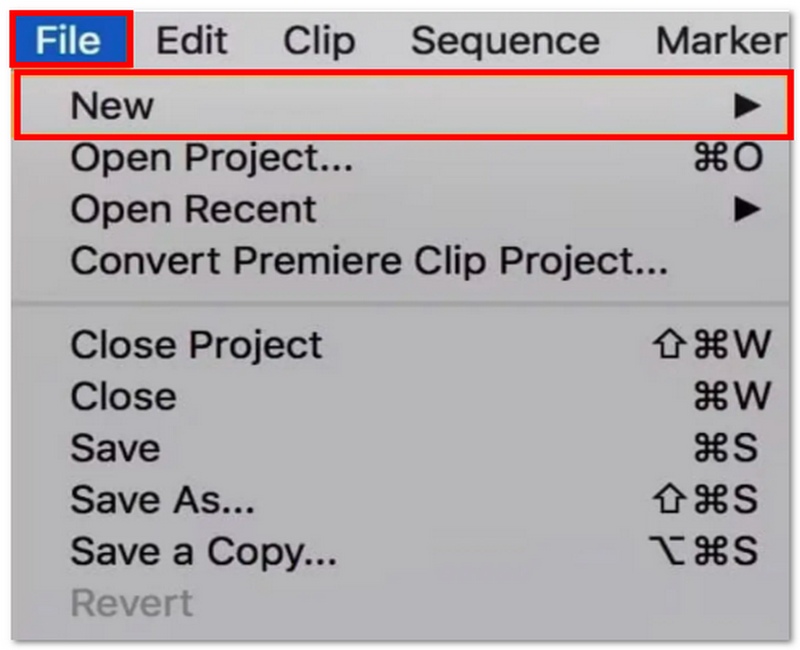
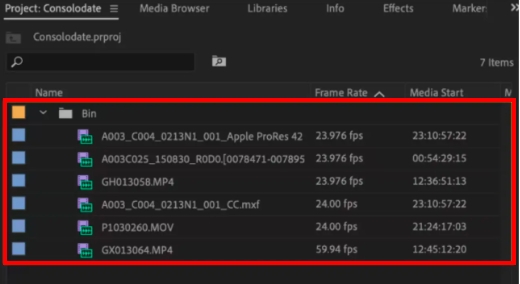
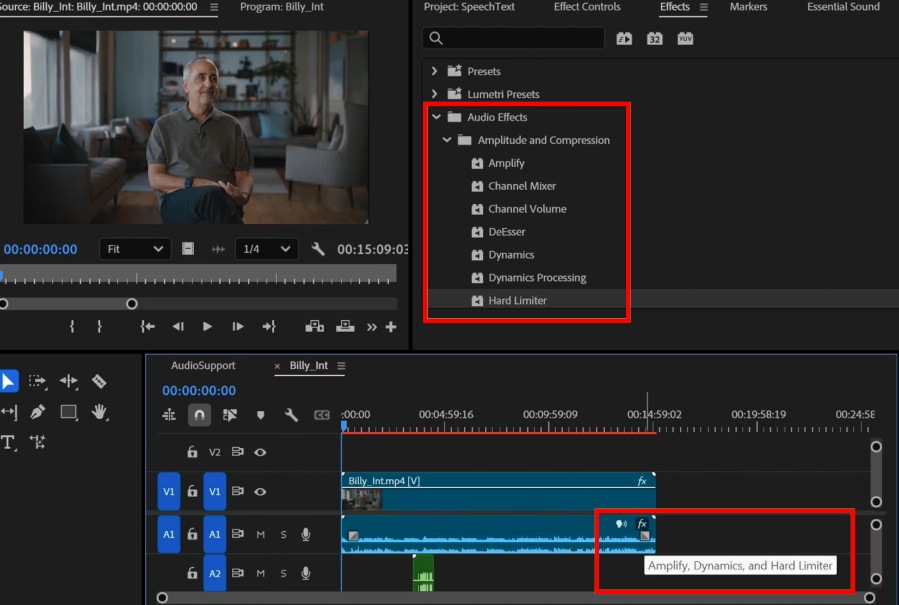
Ideal para
Does vocal removal work on mono audio tracks?
It’s a bit harder. Most vocal cancellation methods count on having stereo channels separated. So if the MP4 only has mono audio, you shouldn’t expect great results.
Will removing vocals change the original video resolution?
Definitely not. Vocal removal is only about modifying the audio track. The video resolution will stay the same unless you alter the export settings while processing.
Can I reverse the process after exporting the video without vocals?
Absolutely not. After exporting and saving a video without the original audio track, you won’t be able to get the vocals back unless you have a backup of the original file.
Conclusión
I've laid out a number of options in this article for removing vocals from an MP4 video, such as a desktop tool, an online option, or professional editing software. Each one of these ways has its own power depending on what you want. In my opinion, using the right MP4 vocal remover is mostly about what you want to achieve with your project. If you want the easiest and most reliable results, AI-powered tools are usually the best choice. But no matter which method you use, you now have the knowledge to remove vocals confidently and keep your video quality intact.
 Los mejores reparadores de audio con IA de 2026: restaura la claridad al instante
Aquí se encuentran las herramientas de reparación de audio con IA más eficientes para reparar audio deficiente, eliminar el ruido de fondo y mejorar la claridad vocal para proyectos profesionales o personales.
 Los 10 mejores reproductores MP4 para PC, Mac y en línea con Windows 11/10/7
¿Windows 10/11 viene con un reproductor MP4? ¿Cuál es el mejor reproductor MP4 para Mac? Consulte la reseña de los diez mejores reproductores MP4 para Mac, PC con Windows y en línea.
 Cómo editar videos MP4 en Windows 10/8/7 y Mac
¿Intenta aprender a editar videos MP4 en Windows y Mac? Lea este artículo y encuentre la forma más fácil de editar MP4 con el editor de MP4 gratuito.
Video Converter Ultimate es un excelente conversor, editor y potenciador de video para convertir, mejorar y editar videos y música en 1000 formatos y más.
100% Seguro. Sin anuncios.
100% Seguro. Sin anuncios.

*Campo requerido
*Por favor ingrese un correo electrónico válido