Aiseesoft Screen Recorder
 100% Seguro. Sin anuncios.
100% Seguro. Sin anuncios.
Contenido
"Hey, can I really screenshot this?" If this is something you've considered while seeing a WhatsApp message, a status via WhatsApp, or a photo someone has sent to you, then this is for you. There are times when the thing you want to screenshot is a crucial piece of information. There are instances when you don't want to lose a crucial piece of information. At other times, it's a memorable chat or a humorous message.
WhatsApp is really friendly in letting you screenshot your screen. Yet, before you go pressing that screenshot shortcut, you still need to know a couple of things. Here, we're going to cover how to take screenshots on smartphones, computer chat records, and save lengthy conversations. In the end, you'll be able to take WhatsApp screenshots perfectly in the manner that suits you most.
Most people wonder before taking screenshots: Does WhatsApp show if you screenshot? The answer is very simple. It’s a No. WhatsApp does not notify users of a screenshot in normal chats, group conversations, status updates, and profile pictures.
So, you can use your phone's default feature to take a screenshot of a message, photo, or conversation without the other person getting an alert. Unlike a few social networks that notify users of screenshots, WhatsApp does not offer this kind of notification in general.
Still, make sure to have good manners when you tomar capturas de pantalla and save or share them. Even though you can take a screenshot, it doesn't necessarily mean you can share it without getting permission first.
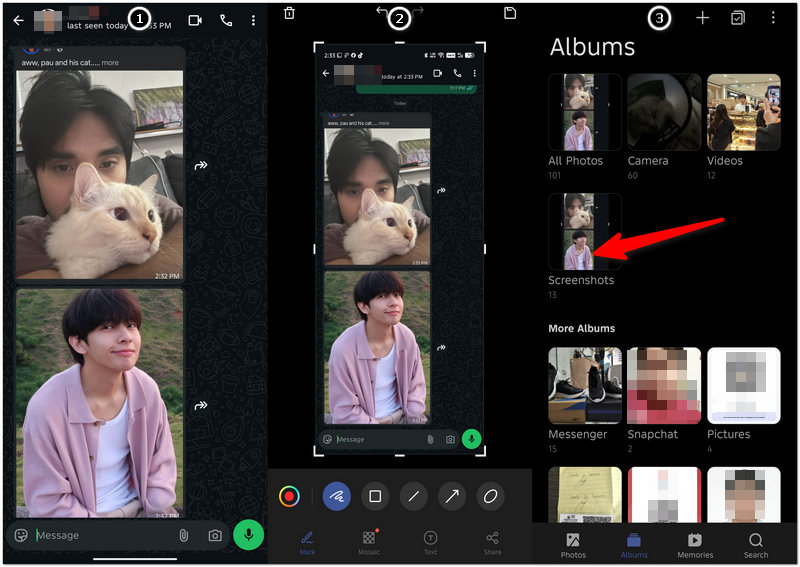
Saving chats, photos, and status updates on WhatsApp in a jiffy is possible through the screenshot feature of any smartphone. For both iPhone and Android users, the whole operation lasts only a few seconds for you. If, at the back of your mind, you are thinking about how to screenshot on WhatsApp, then follow the steps below, which will enable you to take screenshots fast and simply.
If you use WhatsApp for iPhone, taking a screenshot is a very fast operation, and you don't have to install anything to get it done. Using the native screenshot functionality, you can record conversations, images, status updates, or really anything that is on your screen.
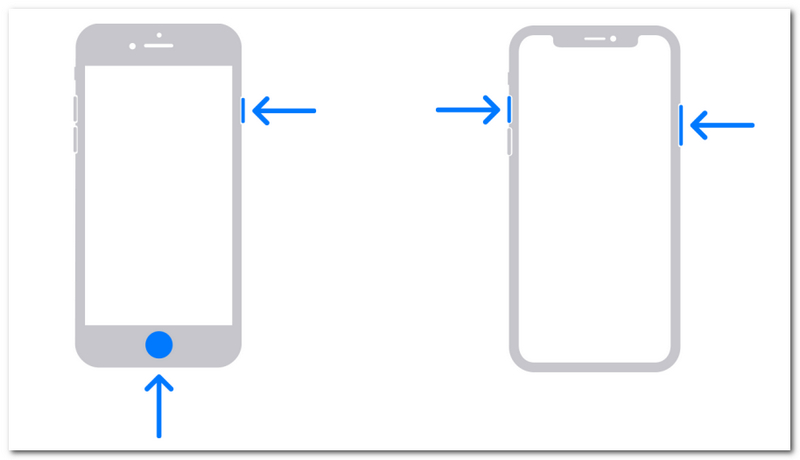
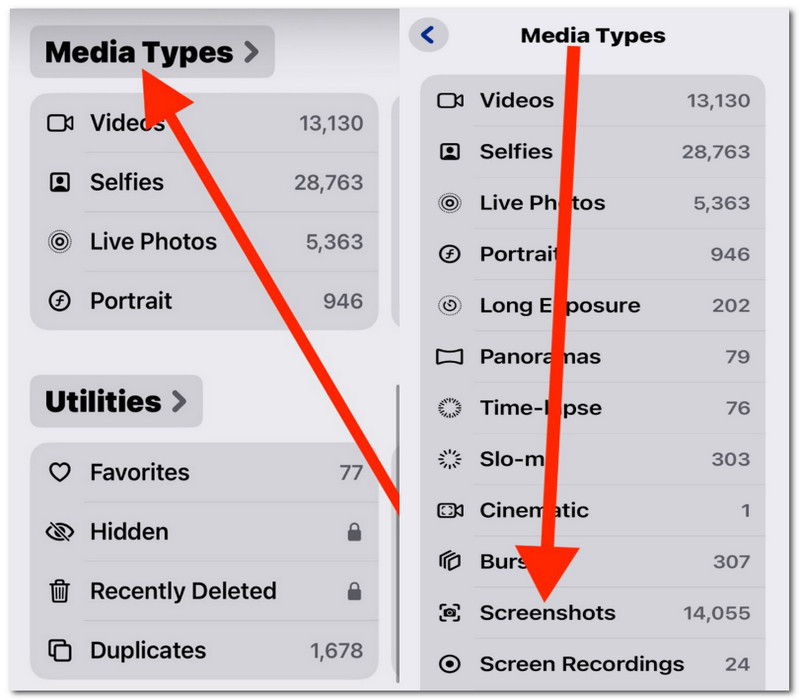
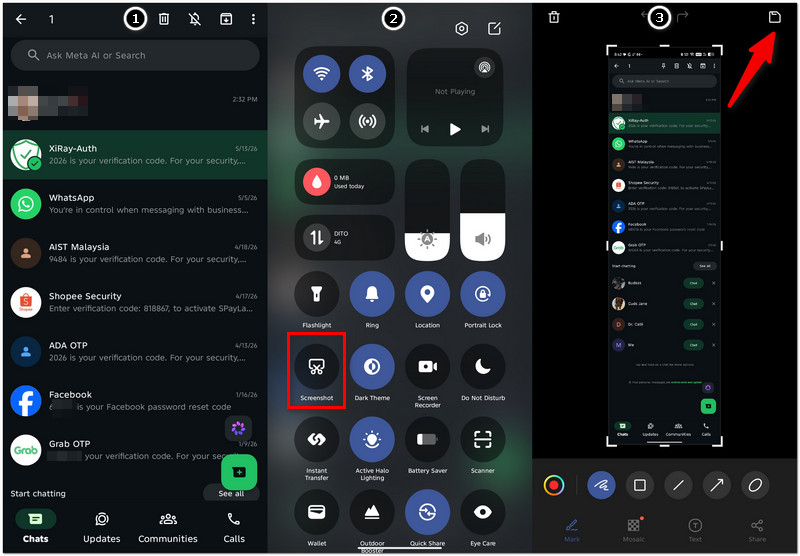
Grabbing a screenshot on an Android device is equally simple. Most Android models have integrated screenshot shortcut keys, which enable users to swiftly take WhatsApp conversation screenshots, image status updates, or any other visual on their screen.
Besides physical buttons, some Android devices may let you make a screenshot by gestures, e.g., swiping three fingers or swiping a palm.
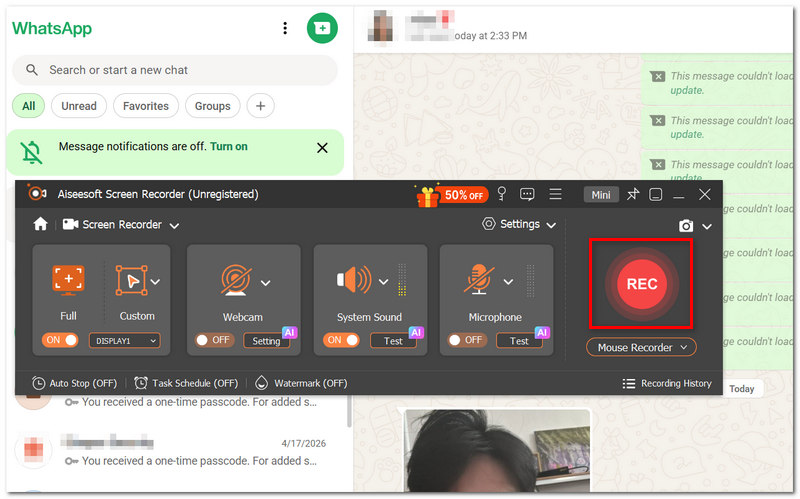
Looking to WhatsApp on a large display? Aiseesoft Screen Recorder lets you conveniently capture WhatsApp chats, photos, and other content directly on your computer. It comes in handy when you require higher-quality screenshots, want to store long conversations, or are working with WhatsApp Web and looking for an option beyond what simple screenshot tools offer.
Descarga
100% Seguro. Sin anuncios.
100% Seguro. Sin anuncios.
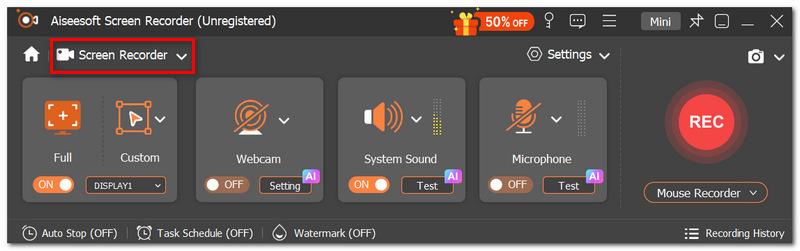
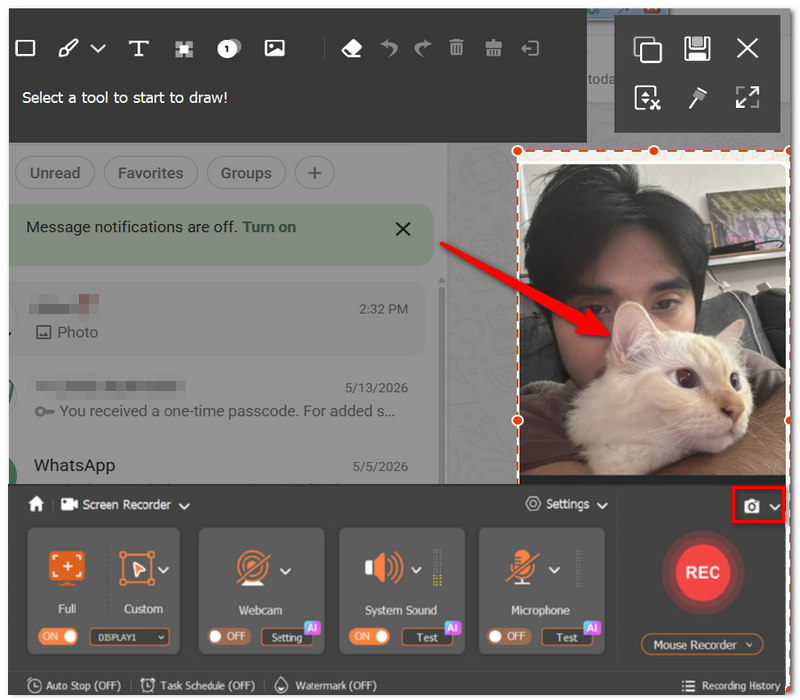
If you have more content to capture, just hit Record and keep scrolling the chat as you normally would.
If you're one of the people who use WhatsApp Web on their computer, taking a screenshot will be convenient for you- a bigger screen, desktop tools. A message is a good thing to save, a status update is attractive, a screenshot game for WhatsApp is a share - whatever it is capturing, WhatsApp Web helps you do that quickly. The ways listed here are to instruct you on how to screenshot on Windows and Mac.
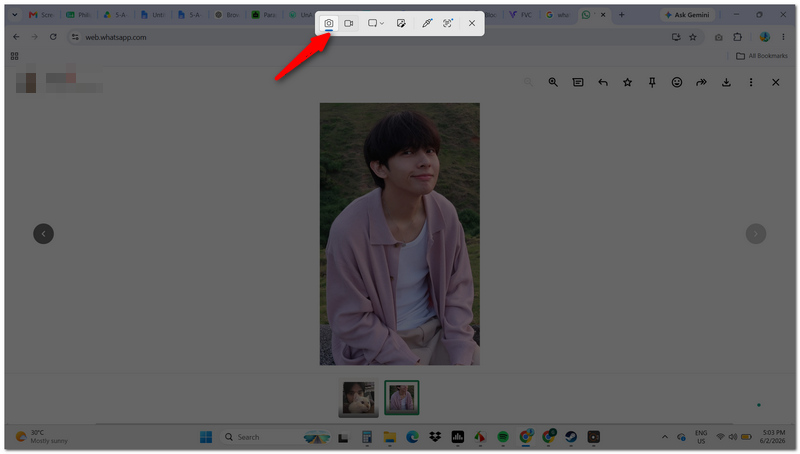
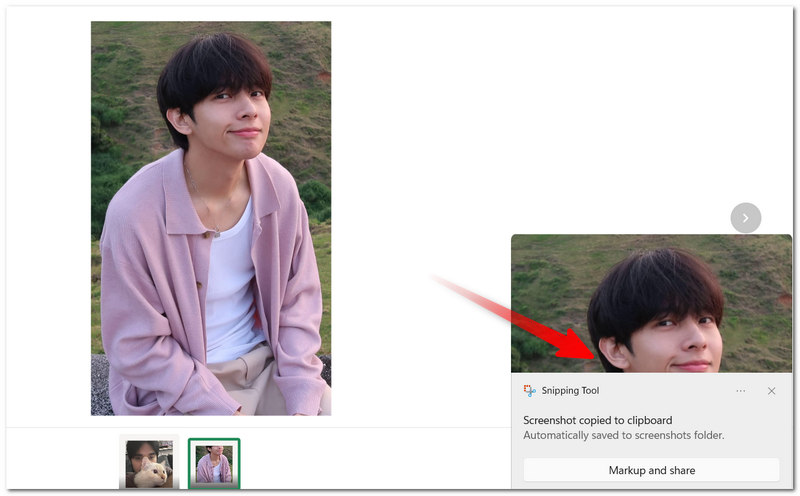
Windows comes with a handy Snipping Tool that captures any portion of your screen. It is a fast and easy method to store WhatsApp Web conversations, images, or statuses without adding any extra software.
Mac has screenshot shortcuts in the system that let you take a screenshot of WhatsApp Web easily without downloading a program. Also, you can use this snipping tool alternative for Mac to take a shot of the full screen or a particular chat or picture you want to grab.
Taking the screenshot is done by releasing the trackpad or mouse. If you want to capture the whole screen, press Comando + Mayúsculas + 3.
Standard screenshots take only the visible portion of your display, making it troublesome to capture long discussions. Can you screenshot on WhatsApp? Especially while trying to take a whole chat conversation at once? The answer is yes, and many current smartphones now allow scrollable screenshots.
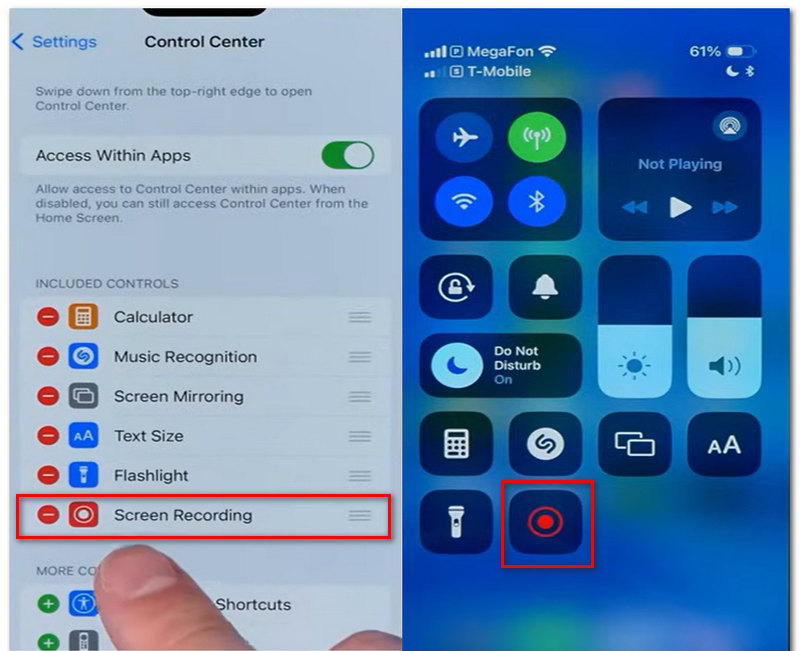
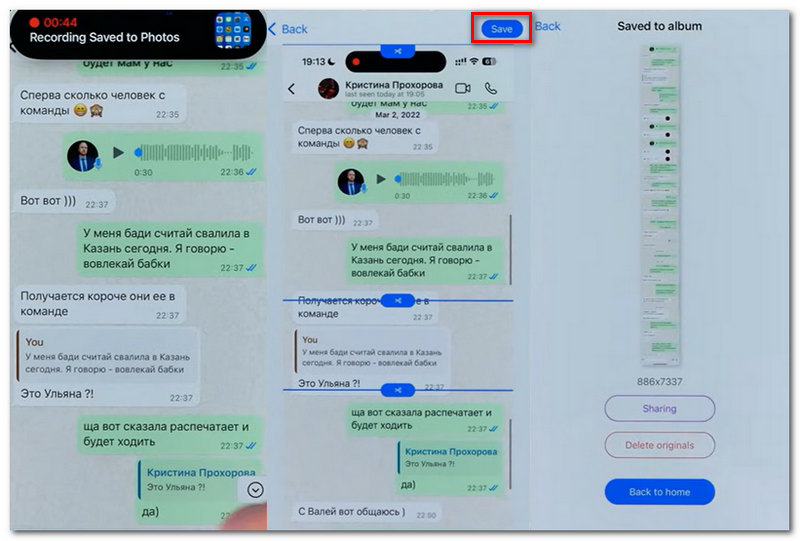
Is it possible to later search text from within a WhatsApp screenshot? Of course.
A lot of contemporary mobile phones are equipped with OCR (Optical Character Recognition); this means that you can easily find, copy, or sift through typing in your house.
What is causing the lack of timestamps in my WhatsApp screenshots?
This generally occurs when the chat window has been cropped or when a screenshot has been taken of the message section only instead of the entire chat window.
Why does it only show a section of the voice message in my screenshot?
A screenshot can merely record the look of the player interface. If you want to record the real sound, you'd better choose another screen recording or audio recording software.
Conclusión
WhatsApp screenshots are one of the easiest ways to keep a record of valuable conversations, important information, things you want to remember, and, of course, those priceless memories. You may be using your phone, a computer, or even WhatsApp Web, but there are a handful of simple ways to take all the screenshots you want. From simple screenshots to scrolling ones and even a WhatsApp video call screenshot.
 [Guía visual 2025] Cómo hacer una copia de seguridad y restaurar los chats de WhatsApp
Hacer una copia de seguridad de los chats de WhatsApp le permite restaurar mensajes fácilmente. Consulte la guía detallada para ver cómo hacer una copia de seguridad y restaurar los datos de WhatsApp en iOS y Android.
 Aprenda a importar y sincronizar contactos de WhatsApp entre dispositivos
¿Te preguntas por qué tus contactos de WhatsApp no se sincronizan? Aprende cómo solucionar problemas de sincronización, fusionar datos de contactos e importar contactos en Android y iPhone.
 Alternativas de WhatsApp: 10 mejores aplicaciones de mensajería gratuitas como WhatsApp
¿Busca aplicaciones de mensajería gratuitas como WhatsApp Messenger? Esta publicación te presenta la mejor aplicación de mensajería para Android/iPhone. Lea este artículo y conozca las 10 mejores alternativas gratuitas de WhatsApp aquí.

Aiseesoft Screen Recorder es el mejor software de grabación de pantalla para capturar cualquier actividad como videos en línea, llamadas de cámara web, juegos en Windows/Mac.
100% Seguro. Sin anuncios.
100% Seguro. Sin anuncios.

*Campo requerido
*Por favor ingrese un correo electrónico válido